---
title: Bulk Upload Options for Project Timesheets
description: Project Timesheet Upload gives users three ways to create shifts in bulk from the Project Timesheets screen, each suited to a different input format or workflow. All three methods produce pending shifts that go through the same shift creation pipeline.
---
[Skip to content](https://ask.smartbarrel.io/bulk-upload-options-for-project-timesheets#main-content)
English
Show submenu for translations
[Customer portal](https://ask.smartbarrel.io/ticketsview?hsLang=en)
![smartbarrel-logo-1.png\]](https://ask.smartbarrel.io/hs-fs/hubfs/smartbarrel-logo-1.png?height=39&name=smartbarrel-logo-1.png)
- Home
- Products
- Pricing
- Blog
- Company
Open main navigation
Close main navigation
- Home
- Products
- Pricing
- Blog
- Company
- English
Show submenu for translations
- [Customer portal](https://ask.smartbarrel.io/ticketsview)
- Go to Dashboard
Go to Dashboard
Search the SmartBarrel Knowledge Base
- There are no suggestions because the search field is empty.
1. [SmartBarrel Knowledge Base](https://ask.smartbarrel.io/?hsLang=en)
2. [SmartBarrel Dashboard](https://ask.smartbarrel.io/smartbarrel-dashboard?hsLang=en)
3. [Timesheet Management](https://ask.smartbarrel.io/smartbarrel-dashboard?hsLang=en#timesheet-management)
# Bulk Upload Options for Project Timesheets
## Three ways to create shifts in bulk from the Project Timesheets screen: Bulk Upload (XLSX), Upload with AI, and Crew Time Entry
### Overview
SmartBarrel gives you three ways to create shifts in bulk from the Project Timesheets screen: **Bulk Upload (XLSX)**, **Upload with AI**, and **Crew Time Entry**. Each method is designed for a different workflow — from structured spreadsheets to scanned paper timesheets — but all three produce the same pending shifts that go through the standard review and approval process.
---
### Things to Consider
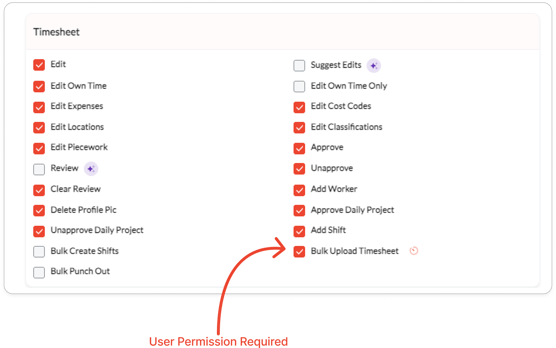
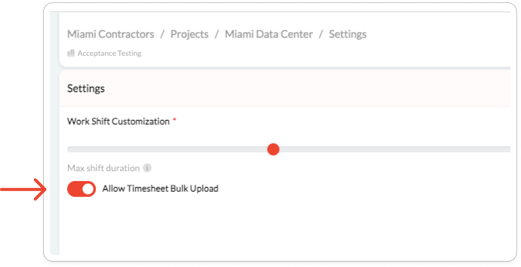
- **Bulk Upload (XLSX)** requires settings to be active: the User Permission \> **Bulk Upload Timesheet** AND the Project \> Settings \> **Allow Timesheet Bulk Upload** setting enabled on the project. If either is missing, the upload icon will not appear.
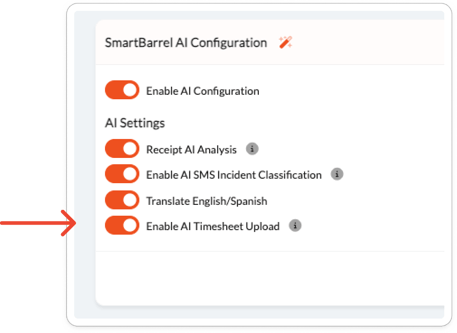
- **Upload with AI** and **Crew Time Entry** require the **Enable AI Timesheet Upload** feature flag to be ON. Admins and Managers with Timesheets module access can use both features. Navigate to **Settings → General → SmartBarrel AI Configuration → AI Settings** to confirm the flag is enabled.
- Accepted file types for AI upload: JPEG, JPG, PNG, GIF, WEBP (up to 5 MB) and PDF (up to 20 MB). Excel/XLSX files are **not** accepted in the AI upload flow.
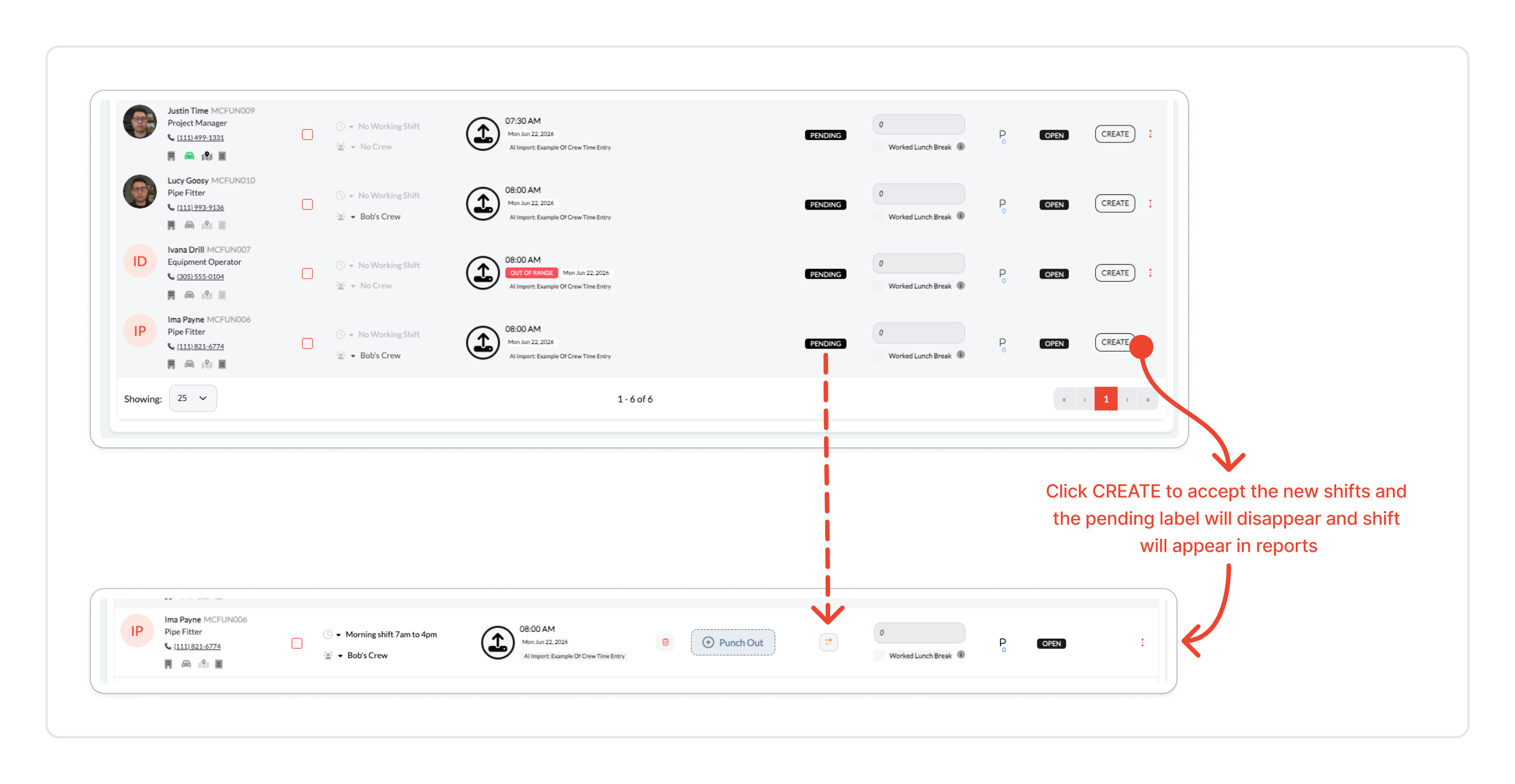
- All three methods create shifts with a **Pending** status — they must be reviewed and approved before they are finalized.
---
### How It Works
Each method feeds into the same shift creation pipeline. Once submitted, shifts appear in the Timesheets screen as pending records. From there, supervisors and admins can review, edit, or approve them using the standard timesheet workflow.
---
### Step-by-Step Instructions
#### Option 1 — Bulk Upload (XLSX)
Use this method when your timesheet data is already in a structured spreadsheet format.
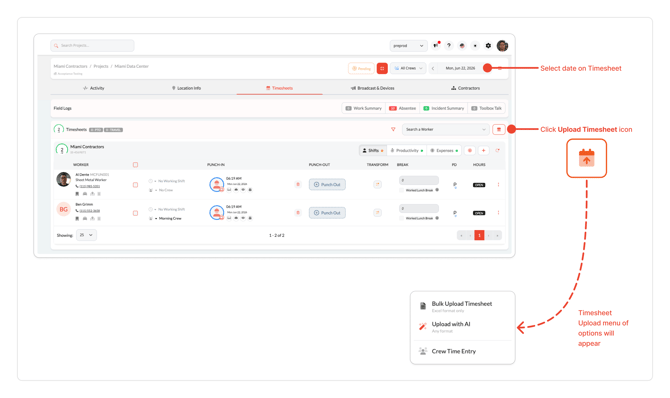
**Step 1.** Navigate to the project **Timesheets** screen and select the date.
**Step 2.** Click the **Upload Timesheet** icon (timecard icon) in the toolbar. This icon is only visible when the project setting is enabled.
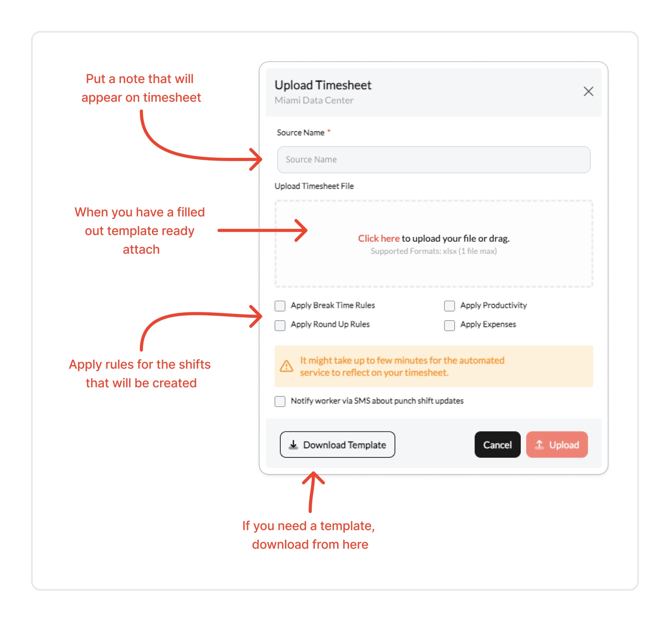
**Step 3.** Download the XLSX template. Fill it out with the required columns:
- **Payroll ID** or **Phone Number** (at least one is required per row)
- **Shift Start Time** and **Shift End Time** in 12-hour format
Save the file as `.xls` before uploading.
**Step 4.** Click **Upload** and configure the optional import rules:
- Apply Break Time Rules
- Carry-Over Productivity
- Round Up Rules
**Step 5.** Select a **Source** (required) and click upload.
**Step 6.** Review the pending shifts in the preview, then click **Create** to create and approve them.
---
#### Option 2 — Upload with AI
Use this method when your timesheet is in a non-standard format — a scanned PDF, a photo of a paper timesheet, or any supported image file.
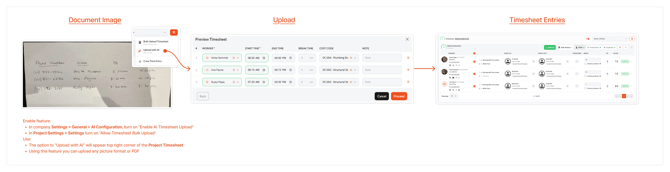
**Step 1.** Navigate to the project **Timesheets** screen and select the date.
**Step 2.** Click the **Import** dropdown and select **Upload with AI**. This option is only visible when the feature flag is ON.
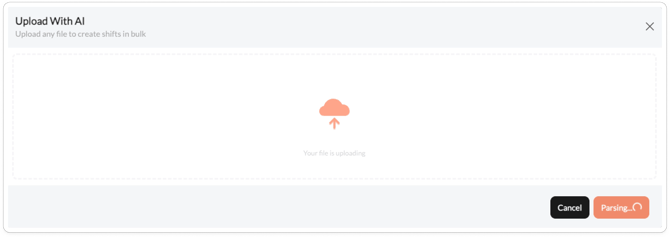
**Step 3.** In the **Upload modal**, drag and drop your file or click to browse. The upload button activates once a file is selected.
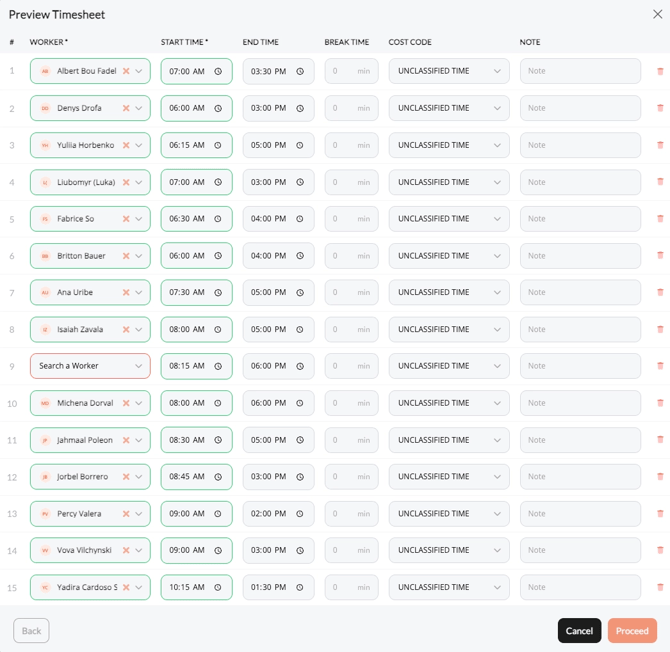
**Step 4.** Once uploaded, review the **Preview Timesheet** table. AI parses your file and populates the following columns
| Column | Required? |
| --- | --- |
| Worker | Yes |
| Start Time | Yes |
| End Time | No |
| Break Time | No |
| Location | No |
| Piecework | No |
| Classification | No |
| Cost Code | No |
| Note | No |
| | |
All fields are inline-editable. Rows with errors are highlighted in red. The **Proceed** button is disabled until all errors are resolved.
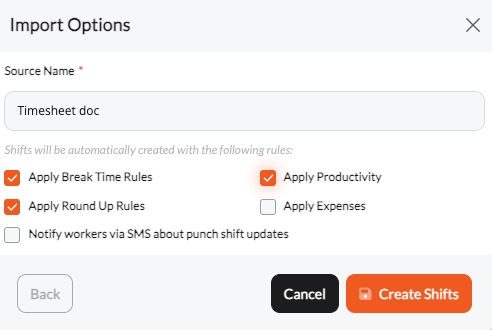
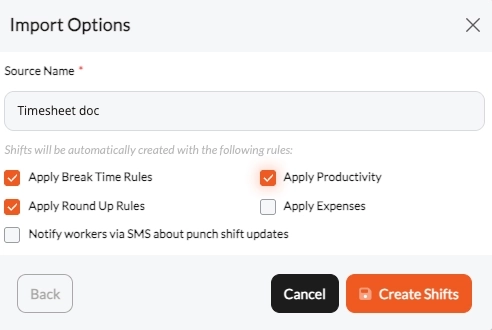
**Step 5.** In the **Import Options** modal, enter a required **Source Name** and configure any applicable rules:
- Apply Break Time Rules
- Apply Productivity
- Apply Round Up Rules
- Apply Expenses
- Notify workers via SMS
Click **Create Shifts** to submit.
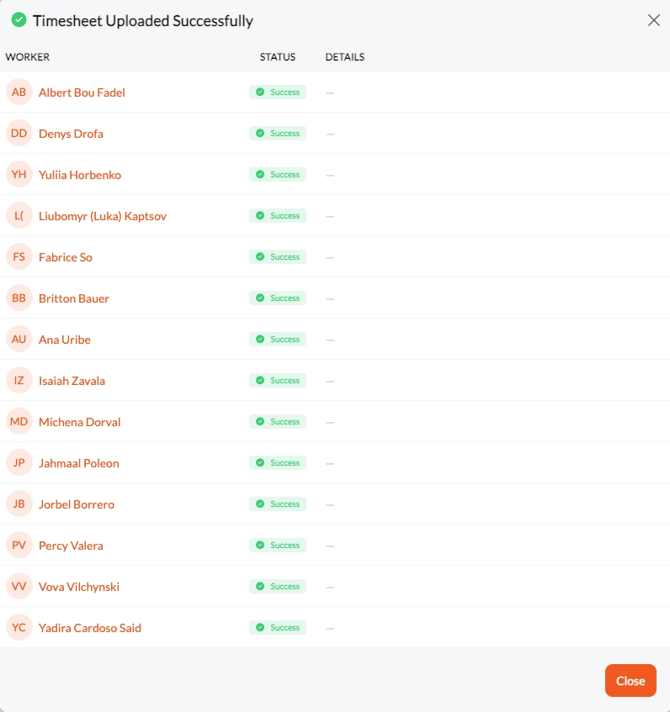
**Step 6.** The **Success modal** confirms each worker's import status. Any failures are shown in red. After closing, you are redirected to the existing timesheet view.
****
**Video**
---
#### Option 3 — Crew Time Entry
Use this method to manually enter shifts for multiple workers at once directly in the UI. No file needed.
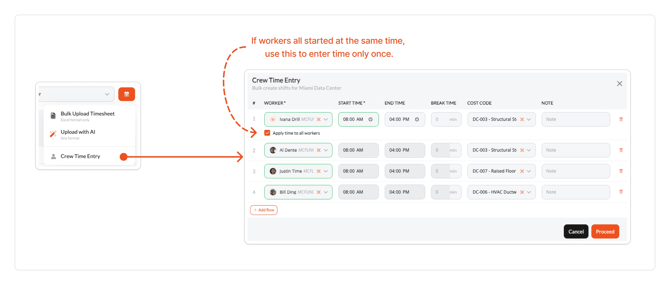
**Step 1.** Navigate to the project **Timesheets** screen and select the date.
**Step 2.** Click the **Import** dropdown and select **Crew Time Entry**. This option is only visible when the feature flag is ON.
**Step 3.** Use the same **Preview Timesheet** table as Upload with AI to add rows for each worker. All fields are inline-editable.
**Step 4.** Complete the **Import Options** and **Success** steps as described in Option 2 (Steps 5–6).
**Video** - see second part from 1:41 onwards.
---
### Important Notes
\> ⚠️ **Both Bulk Upload conditions must be met.** The Bulk Upload icon only appears when the user has the **Bulk Upload Timesheet** permission AND the **Allow Timesheet Bulk Upload** project setting is enabled. Check both if the icon is missing.
\> ⚠️ **Excel files are not supported in the AI upload flow.** If your source file is an XLSX, use the Bulk Upload (XLSX) method instead.
\> ⚠️ **Unmatched fields require manual resolution.** During AI parsing, workers, locations, and cost codes not found in the system are returned as blank. These must be filled in manually in the Preview step before proceeding.
\> 💡 **Crew Time Entry is a good alternative to spreadsheets.** For teams that need a quick manual entry for several workers with the same punch times, and don't work from an Excel template, Crew Time Entry provides a fast, UI-driven way to enter shifts for multiple workers at once.
---
### Why This Matters
- Eliminates manual re-entry when timesheet data arrives in formats other than a spreadsheet
- Accommodates a wide range of real-world field workflows — paper timesheets, PDFs, photos, and spreadsheets
- All three methods flow into the same pending shift review process, keeping approval workflows consistent
---
### Related Articles
- [How do I bulk upload timesheets?](https://ask.smartbarrel.io/how-to-bulk-upload-timesheet?hsLang=en)
- [How do I bulk upload workers?](https://ask.smartbarrel.io/how-to-bluk-upload-workers?hsLang=en)
- [SmartBarrel Dashboard](https://ask.smartbarrel.io/smartbarrel-dashboard?hsLang=en#main-content)
- [Worker Profile Management](https://ask.smartbarrel.io/smartbarrel-dashboard?hsLang=en#worker-profile-management)
- [Project Settings](https://ask.smartbarrel.io/smartbarrel-dashboard?hsLang=en#project-settings)
- [Timesheet Management](https://ask.smartbarrel.io/smartbarrel-dashboard?hsLang=en#timesheet-management)
- [Productivity](https://ask.smartbarrel.io/smartbarrel-dashboard?hsLang=en#productivity)
- [Worker Vs User](https://ask.smartbarrel.io/smartbarrel-dashboard?hsLang=en#worker-vs-user)
- [Crew Management](https://ask.smartbarrel.io/smartbarrel-dashboard?hsLang=en#crew-management)
- [Reports](https://ask.smartbarrel.io/smartbarrel-dashboard?hsLang=en#reports)
- [Company Settings](https://ask.smartbarrel.io/smartbarrel-dashboard?hsLang=en#company-settings)
- [Security](https://ask.smartbarrel.io/smartbarrel-dashboard?hsLang=en#security)
- [PunchFlow and SMS Messages](https://ask.smartbarrel.io/smartbarrel-dashboard?hsLang=en#punchflow-and-sms-messages)
- [Microsoft SSO](https://ask.smartbarrel.io/smartbarrel-dashboard?hsLang=en#microsoft-sso)
- [Unions and Agreements](https://ask.smartbarrel.io/smartbarrel-dashboard?hsLang=en#unions-and-agreements)
- [Device and Solar](https://ask.smartbarrel.io/device-and-solar?hsLang=en)
- [Mobile App](https://ask.smartbarrel.io/mobile-app?hsLang=en#main-content)
- [Manage the Apps Settings](https://ask.smartbarrel.io/mobile-app?hsLang=en#manage-the-apps-settings)
- [Using the App](https://ask.smartbarrel.io/mobile-app?hsLang=en#using-the-app)
- [Integrations](https://ask.smartbarrel.io/integrations?hsLang=en#main-content)
- [Procore Integration](https://ask.smartbarrel.io/integrations?hsLang=en#procore-integration)
- [CMiC Integration](https://ask.smartbarrel.io/integrations?hsLang=en#cmic-integration)
- [API](https://ask.smartbarrel.io/integrations?hsLang=en#api)
- [Viewpoint Vista (App Xchange)](https://ask.smartbarrel.io/integrations?hsLang=en#viewpoint-vista-app-xchange)
- [Plexxis](https://ask.smartbarrel.io/integrations?hsLang=en#plexxis)
- [Foundation](https://ask.smartbarrel.io/integrations?hsLang=en#foundation)
- [BuildOps](https://ask.smartbarrel.io/integrations?hsLang=en#buildops)
- [Spectrum](https://ask.smartbarrel.io/integrations?hsLang=en#spectrum)
- [Feature Highlights](https://ask.smartbarrel.io/feature-highlights?hsLang=en)
- [Productivity](https://ask.smartbarrel.io/productivity?hsLang=en)
- Home
- Products
- Pricing
- Blog
- Company
[](https://smartbarrel.io)
Copyright © 2026, SmartBarrel