![smartbarrel-logo-1.png]](https://ask.smartbarrel.io/hs-fs/hubfs/smartbarrel-logo-1.png?height=39&name=smartbarrel-logo-1.png)
Spectrum is the source of truth for your worker directory. The Worker Sync imports active employees from Spectrum into SmartBarrel and keeps their profiles up to date. You can run it on demand or let it run automatically.
Before you start
⚠️ Ensure you have phone numbers & emails filled out correctly before syncing.
⚠️ Ensure you are familiar with the Payroll ID Uniqueness Settings on your General Settings
- Spectrum must be connected (see: How do you Set Up the Spectrum Integration?).
- The employees' Spectrum company must be mapped to a contractor with Sync Workers turned on.
Sync workers
- Go to Integrations > Spectrum > Workers.
- Click Sync Workers.
- Confirm when prompted. The sync is queued and runs in the background.
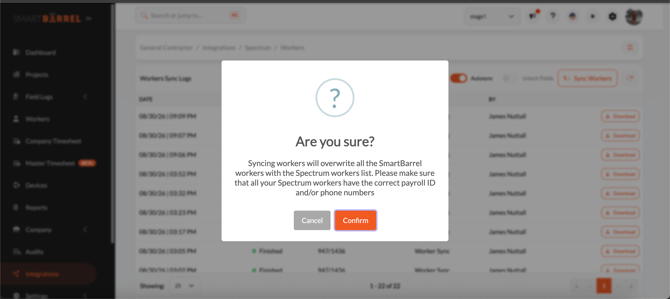
The confirmation is a reminder that Spectrum wins: your SmartBarrel worker records are updated to match the Spectrum roster, so your Spectrum employees should have correct payroll IDs and phone numbers before you run it.
To keep workers up to date automatically, turn on Autosync on this page or in Company Settings.
What gets imported
| Worker Field | Comes from Spectrum | Required? |
|---|---|---|
| First Name | First Name | Yes |
| Last Name | Last Name | Yes |
| Phone Number | Mobile phone, falling back to the landline | Yes |
| No | ||
| Payroll ID | Employee Code | No |
| Contractor | Company Code, matched to the contractor you mapped | Yes |
| Position | Trade, when Import Position is on | No |
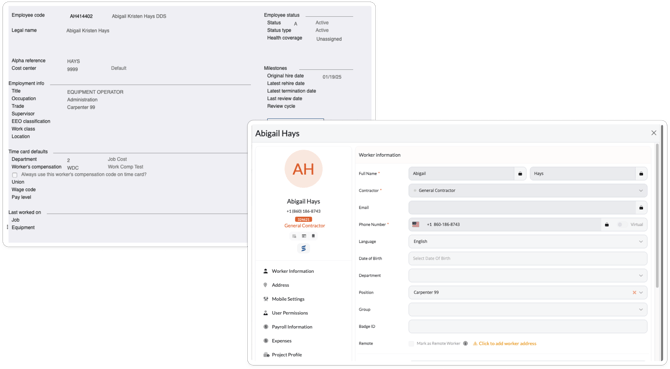
Spectrum stores its text with extra spacing around it. SmartBarrel removes that automatically, so a payroll ID arrives clean.
Positions from the Spectrum Trade
If you turn on Import Position in Company Settings, each distinct Trade value in Spectrum becomes a SmartBarrel Position, and workers are assigned to it on every sync. Where a Position with that name already exists, it is used as is.
Two things worth knowing:
- Trade and Title are different fields in Spectrum. SmartBarrel uses Trade.
- While Import Position is on, Spectrum sets the Position for any worker who has a Trade. If someone changes that worker's Position by hand in SmartBarrel, the next sync sets it back.
Allow Position reset is an extra option that only becomes available once Import Position is on. With it on, a worker whose Trade is empty has their Position cleared. With it off, they keep the Position they already have.
Why didn't a worker sync?
A worker is skipped or missing when:
- Their Spectrum company is not mapped, or its Sync Workers flag is off.
- They are not in status "A" in Spectrum. SmartBarrel treats anyone not in status A as inactive and will not come through into SmartBarrel.
- Their phone number is already in use by another worker in SmartBarrel.
- The change is newer than the last delivery of your Spectrum data, so it will arrive on the next one.
Skipped workers show up as warnings in the sync log.
What happens to workers who leaveWhen a worker no longer appears in the Spectrum data, SmartBarrel deactivates them and unlinks them from Spectrum. Their history stays in SmartBarrel.
If a sync comes back with no employees at all, SmartBarrel marks the run as failed instead of deactivating everybody. That is deliberate: an empty roster almost always means something went wrong upstream, not that your workforce is gone.
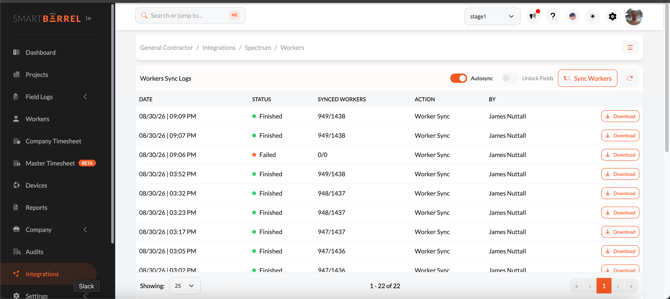
Read the sync logEach run appears in the Workers table with its date, outcome, how many workers were synced against the total, and who ran it. Click Download to export the full log.
- info: the worker was created, updated, or linked successfully.
- warning: the worker was skipped, or a data issue was worked around.
- error: the worker could not be synced, or the run failed.
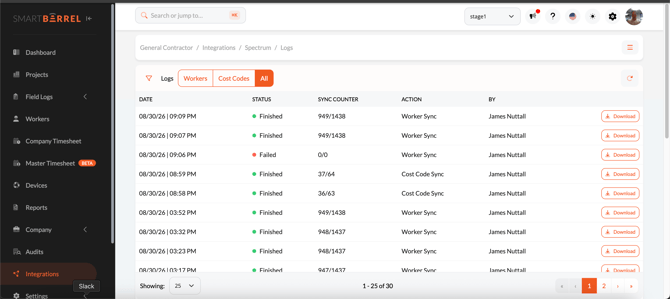
Cost code runs appear alongside worker runs under Integrations > Spectrum > Logs, where you can filter by Workers, Cost Codes, or everything.
FAQ
Can I edit a synced worker in SmartBarrel?
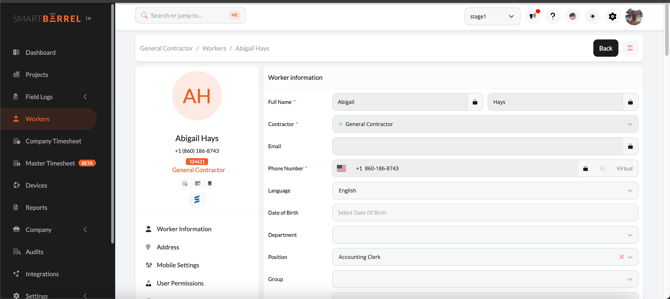
Fields that come from Spectrum are locked by default so Spectrum stays the source of truth. An admin can turn on Unlock Fields in Company Settings to allow edits, which is only available while Autosync is off.
How often does Autosync run?
On a recurring schedule once enabled. You can still run a manual sync at any time with the Sync Workers button.