![smartbarrel-logo-1.png]](https://ask.smartbarrel.io/hs-fs/hubfs/smartbarrel-logo-1.png?height=39&name=smartbarrel-logo-1.png)
To Open the Productivity Table:
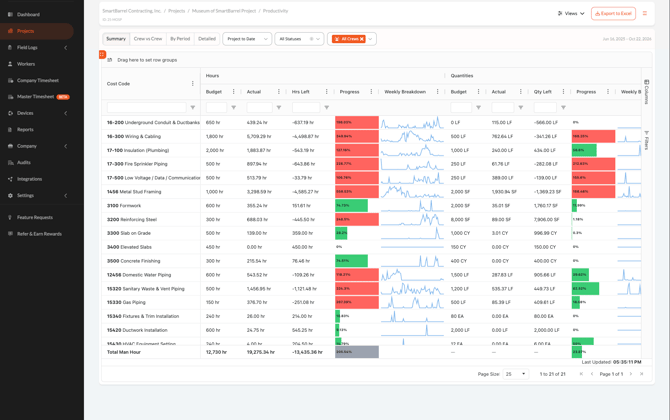
Step 1. Go to Projects, open the project, and select Productivity.
Step 2. Choose a tab at the top left of the table:
- Summary: Overall hours, quantities, and Status for each cost code.
- Crew vs Crew: Each crew’s productivity side by side.
- By Period: Productivity week by week or month by month.
- Detailed: Row level detail for the selected date range.
To Compare Crews (Crew vs Crew):
Step 1. Select the Crew vs Crew tab. Each crew gets its own set of columns, with the number of workers shown next to the crew name. Scroll right to see more crews.
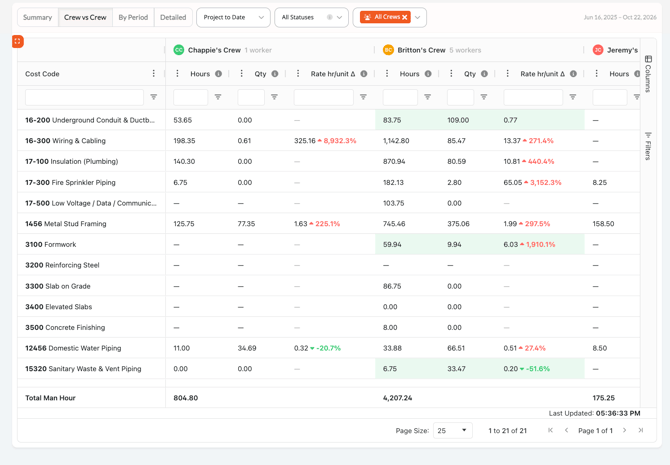
Step 2. Review the Hours, Qty, and Rate hr/unit columns for each cost code. Rate is the number of hours it took to install one unit, so a lower rate is better.
Step 3. Look for the green highlight. It marks the crew with the best rate for that cost code.
💡 Quick Tip: The Total Man Hour row at the bottom shows the total hours logged by each crew.
⚠️ A dash (—) means no hours or quantities were recorded, so a rate cannot be calculated ⚠️
To Track Productivity Over Time (By Period):
Step 1. Select the By Period tab.
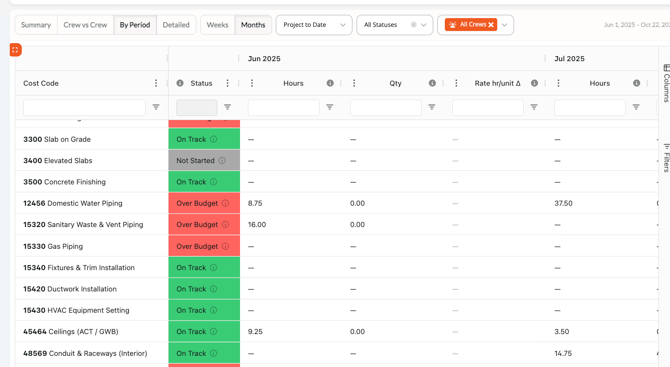
Step 2. Choose Weeks or Months. Each week (W38, W39, and so on) or month gets its own Hours, Qty, and Rate columns.
Step 3. Review the change next to each rate:
- Green ▼ means the rate improved compared with the previous period (fewer hours per unit).
- Red ▲ means the rate got worse (more hours per unit).
The Total column at the far right summarizes the full date range.
To Filter the Table:
Step 1. Use the date range dropdown to pick a preset or select Custom to enter specific dates. Project to Date is the default. The active dates appear on the right side of the filter bar.
Step 2. Use the Status dropdown to show only certain statuses. Hover over the information icon for details.
Step 3. Use the crew dropdown to select All Crews, No Crew (hours not assigned to a crew), or specific crews. Click the X on a crew tag to remove it.
Step 4. To filter within the table, type in the box under any column header or click the filter icon next to it.
💡 Quick Tip: Use the Columns panel on the right edge of the table to hide or show columns, and click the orange icon at the top left of the table to view it in full screen.
Understanding Status:
| Status | Meaning |
|---|---|
| Not Started | No hours logged yet |
| On Track | Less than 85% of budgeted hours used |
| At Risk | 85% to just under 100% of budgeted hours used |
| Over Budget | 100% or more of budgeted hours used, or hours logged against a cost code with no budget |
To Save a View:
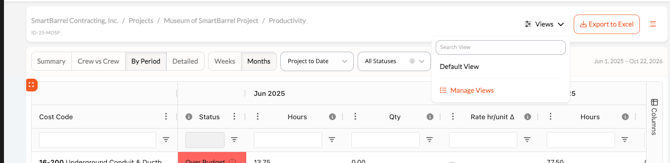
Step 1. Set up the tab and filters the way you want them.
FAQ:
- Why didn’t Status change when I filtered to one crew?
Status is always based on all hours logged on the project compared with the budget. Filters change the hours and rates you see, but not the budget health of a cost code. - Why is a crew missing from Crew vs Crew?
The crew may be removed in the crew filter, or your role may not have access to that crew. Contact your Admin if you think you should see it. - Why did my Crew vs Crew or By Period filters reset?
These tabs always open with default settings. Save a view to keep your setup. Crew selections stay in place while you switch tabs but reset when the page is reloaded.