![smartbarrel-logo-1.png]](https://ask.smartbarrel.io/hs-fs/hubfs/smartbarrel-logo-1.png?height=39&name=smartbarrel-logo-1.png)
Overview
Earn Codes is a centralized code management module that lets you define how hours, time off, travel, piecework, and expenses map to your payroll and accounting systems. Instead of managing PTO Reasons and Expense Codes separately across different pages, admins now manage everything from a single Code Management page. This ensures consistent payroll mappings across all shifts, PTO entries, and expense transactions.
Things to Consider
- Code Management (create, edit, deactivate, delete) requires Admin access
- Payment Profile earn code overrides require Admin access
- Working Shift earn code overrides require the Manage Working Shift permission
⚠️ PTO Reasons and Expense Codes have been migrated to Company→ Code Management. They now exist as earn codes under the Time Off and Expense earn types respectively.
How It Works
Every payroll transaction in SmartBarrel will be tied to an Earn Code — a short label (e.g., REG, OT, HOL) that maps to your payroll or ERP system. Each earn code belongs to an Earn Type, which controls how that pay is calculated and what configuration options are available.
Earn Types
| Earn Type | Used For |
|---|---|
| Hourly | Regular time, overtime, and double time hours. Applies to all labor shifts without piecework when the worker is not salaried. |
| Salary | Fixed amount per pay period. Applies when a worker has a daily or weekly salary enabled on their profile. |
| Piecework | Pay based on units produced. Applies to hours that have piecework assigned in productivity. |
| Time Off | PTO, sick leave, holiday, and other types of time off. Applies to all PTO shifts where the earn code is selected at creation. |
| Expense | Per diem, vehicle allowance, mileage, reimbursements. Applies to all expenses based on expense type. Expense Earn Codes can be configured for 1 or many expense types. |
| Travel | Travel shifts that need to be coded separately from labor shifts. Applies to travel shifts that are not coded as hourly. |
A company can have multiple earn codes under the same earn type to support different pay scenarios within a single pay period.
Earn codes follow a hierarchy: Company Defaults apply everywhere unless overridden at the Payment Profile level, which in turn can be overridden at the Working Shift level.
Step-by-Step Instructions
Create an Earn Code
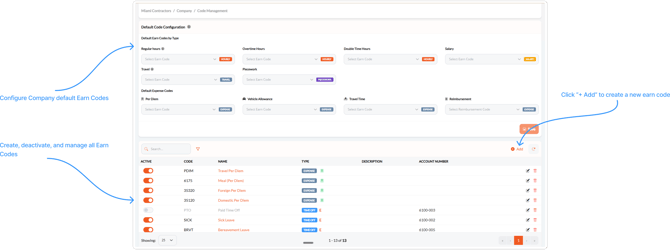
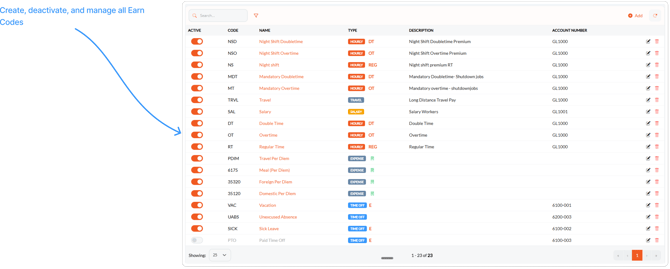
- Navigate to Company → Code Management in the sidebar
- Click + Add in the upper right of the code table
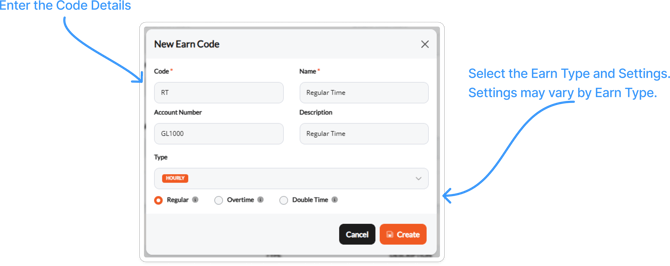
- Fill in the following fields in the New Earn Code modal:
- Code (required) — Short code that maps to your payroll system (e.g., REG, OT, HOL)
- Name (required) — Descriptive label for the code (e.g., Regular Hours, Overtime, Holiday)
- Account Number — GL account number or secondary field
- Description — Any internal reference notes
- Type (required) — Select the earn type. Additional settings will appear based on your selection:
- Hourly: Select Regular, Overtime, or Double Time
- Time Off: Option to mark as Excused
- Expense: Select subtype — Per Diem, Vehicle Allowance, Travel, or Reimbursement
- Salary, Piecework, Travel: No additional subtype required
- Click Save
Configure Company-Level Default Earn Codes
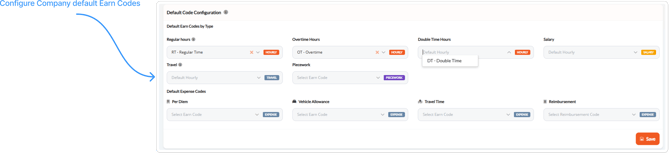
Company defaults automatically apply across all shifts, PTO entries, and expenses unless overridden.
- Locate the Default Code Configuration section at the top of the page
- Under Default Earn Codes by Shift Type, assign codes for: Regular, Overtime Hours, Double Time Hours, Salary, Travel, and Piecework
- Under Default Expense Codes, assign codes for: Per Diem, Vehicle Allowance, Travel, and Reimbursement
- Click Save
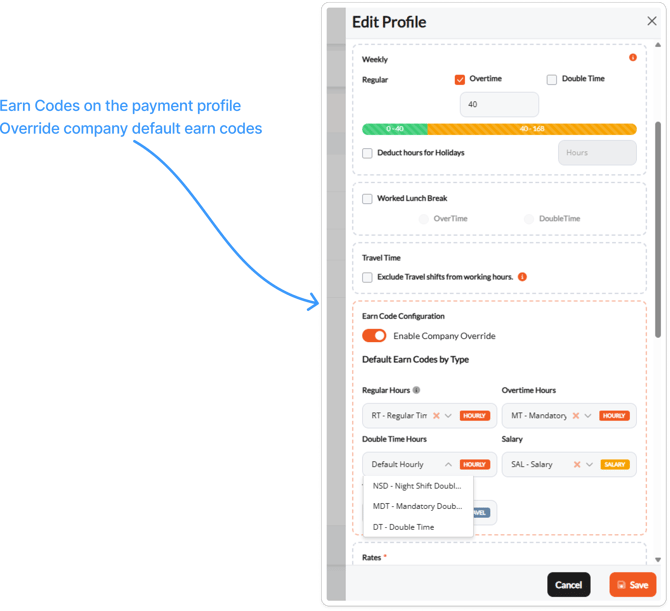
Override Earn Codes on a Payment Profile
Payment profile overrides apply to all workers on that profile, superseding company defaults.
- Navigate to Workers → Payment Profiles and open the profile to edit
- Scroll to the Earn Code Configuration section
- Toggle on Enable Company Overwrite
- Assign codes for Regular Hours, Overtime Hours, Double Time Hours, Salary, and Travel
- Click Save
Override Earn Codes on a Working Shift
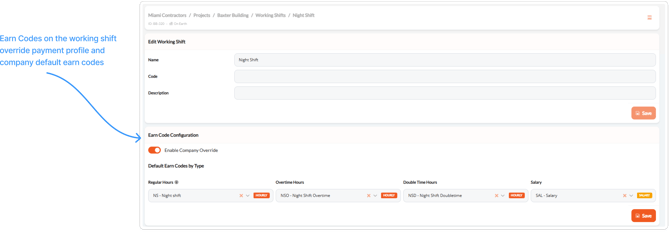
Working shift overrides apply to a specific shift, superseding both company defaults and payment profile overrides.
- Navigate to the project and open Working Shifts, then select the shift to edit
- Scroll to the Earn Code Configuration section
- Toggle on Enable Company Overwrite
- Assign codes for Regular Hours, Overtime Hours, Double Time Hours, and Salary
- Click Save
Assign an Earn Code to a PTO Shift
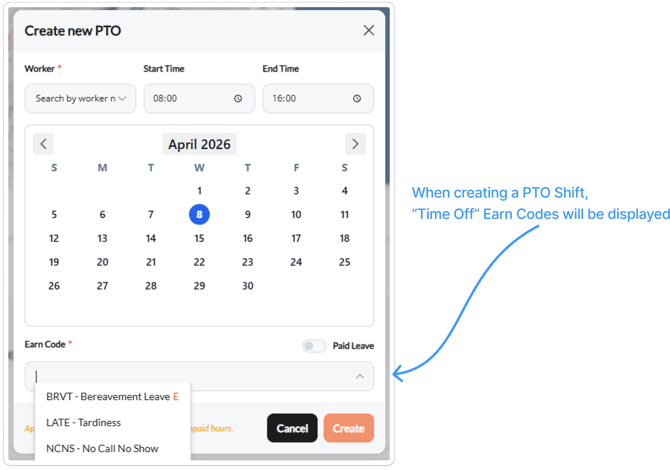
When creating a PTO shift, select a Time Off earn code at the point of shift creation. Available codes are pulled from earn codes configured under the Time Off earn type.
Assign an Earn Code for Per Diem
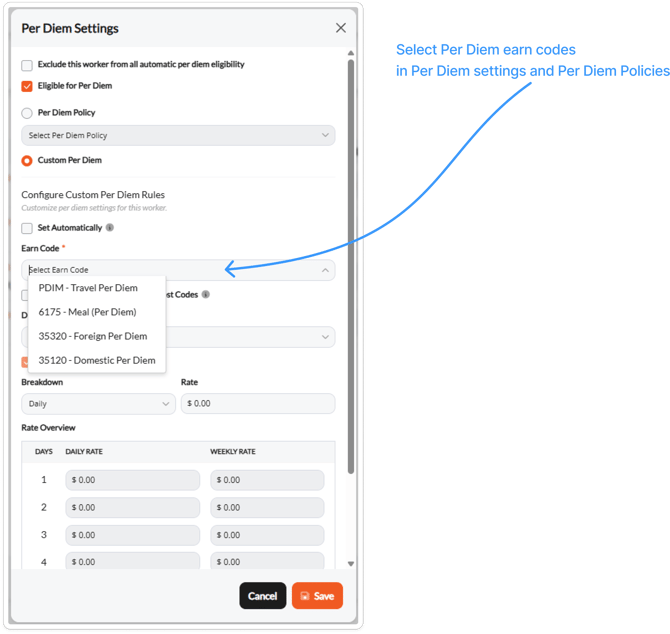
Per diem policies and payment profiles reference earn codes with the Expense earn type. Ensure the appropriate expense codes are created and assigned at the company or payment profile level before configuring per diem policies.
Edit an Earn Code
- Find the code in the table and click the edit (pencil) icon
- Make your changes and click Save
Deactivate an Earn Code
Use this when a code is no longer needed but has been used on past shifts
- Find the code in the table and toggle off the Active switch
⚠️ You cannot deactivate a code that is currently assigned as a default at the company, payment profile, or working shift level. Remove it from all default configurations first, then deactivate.
Delete an Earn Code
- Find the code in the table and click the delete (trash) icon
⚠️ You cannot delete an earn code that has ever been assigned to a shift. Deactivate it instead.
Why This Matters
- Reduces manual payroll code maintenance by centralizing all code configuration in one place
- Ensures consistent earn code mapping across shifts, PTO, and expenses for cleaner payroll exports
- Reduces reliance on custom reporting and overwriting in Excel
- Lays the foundation for more advanced payroll features and integrations
Best Practices
- Create all your earn codes at once to avoid frequently updating the list
- Set up your company-level defaults first before configuring any payment profile or working shift overrides