![smartbarrel-logo-1.png]](https://ask.smartbarrel.io/hs-fs/hubfs/smartbarrel-logo-1.png?height=39&name=smartbarrel-logo-1.png)
Overview
Permission Templates give admins a single place to create and manage reusable permission sets. Instead of configuring access one user at a time, you build a template once and apply it to any user from their Worker Profile. A template sets the starting permissions for a user, and you can still fine-tune individual permissions afterward.
Your custom templates live alongside SmartBarrel's five default roles (Admin, Project Admin, Project Manager, User, and Restricted User), so your team sees one consistent list when assigning access.
Things to Consider
- The Permissions page and all template management require Admin access.
- Default roles cannot be edited or deleted. You can duplicate one to use as a starting point for a new template.
- Templates cannot hold temporary permissions. Any permission on a template is applied permanently. To grant a temporary permission, add it directly on the user's Worker Profile after the template is applied.
⚠️ Deactivating a template hides it from the assignment and filter menus, but it does not change the permissions of users already assigned to it.
How It Works
There are two kinds of templates on the Permissions page:
| Template Type | Edit | Delete | Duplicate | Deactivate |
|---|---|---|---|---|
| Default roles | No | No | Yes | No (always active) |
| Custom templates | Yes | Yes | Yes | Yes |
Active custom templates appear anywhere you assign a permission: the permission dropdown on the Worker Profile, the bulk upload, and the permission filters on the Company Workers and Project Workers pages. Inactive templates stay on the Permissions page for your reference but are hidden everywhere else.
Step-by-Step Instructions
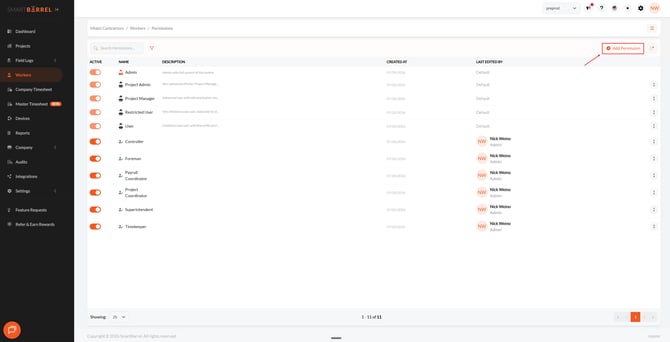
Open the Permissions page
- Go to Workers in the sidebar
- Open the hamburger menu at the top of the Workers page
- Select Permissions
Create a permission template
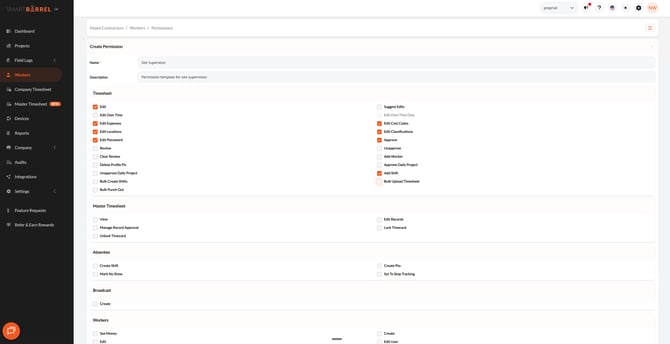
- On the Permissions page, click + Add Permission
- Enter a Name (required, must be unique) and an optional Description
- Select the permissions you want the template to grant
- Click Save
Edit a template
- Find the custom template in the table and click the edit (pencil) icon
- Update the name, description, or permissions
- Click Save
Duplicate a template
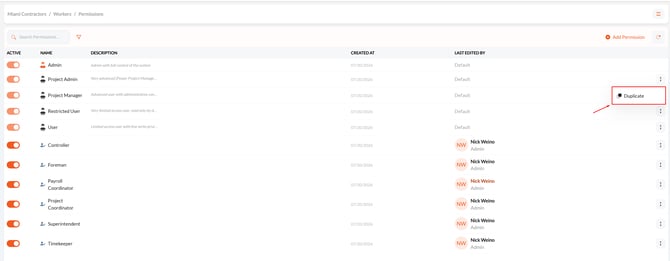
Use this to create a new template from an existing one, including from a default role.
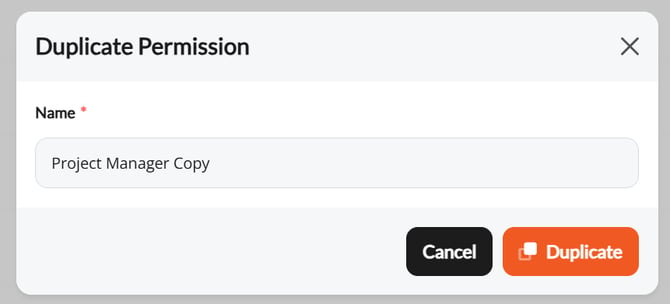
- Find the template and click the duplicate icon
- The new template is created with "Copy" added to the name. Rename it if you like
- Adjust the permissions as needed and click Save
Note: The Admin role cannot be duplicated.
Activate or deactivate a template
- Find the custom template in the table
- Toggle the Active switch on or off
Deactivating removes the template from the assignment and filter menus. Users already assigned to it keep their current permissions.
Apply a template to a user
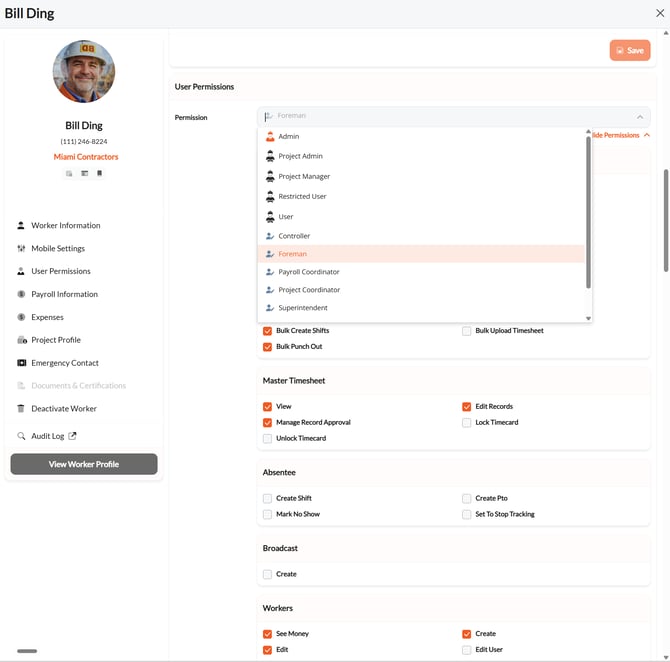
- Go to Workers and open the user's Worker Profile
- In the permission dropdown, select the template or default role you want to apply
- (Optional) Fine-tune individual permissions for that user
- Save the profile
Delete a template
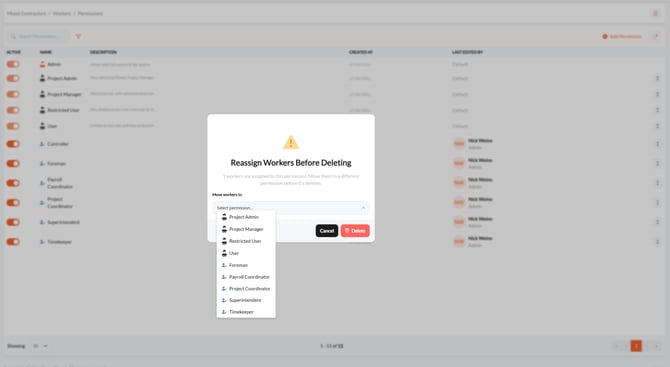
- Find the custom template and click the delete (trash) icon, or open the template and choose delete
- If any users are assigned to the template, you will be asked to reassign them to another permission before deleting. If no users are assigned, the template deletes right away
⚠️ When you reassign users during deletion, each reassigned user's permissions are updated to match the newly selected template. The Admin permission is not available as a reassignment option.
Update a template
Updating a template will not update users' permissions that are already assigned to the template. If you want to make changes to a template and apply them to all users already assigned, we suggest the following workflow.
- Create a new template with the desired permissions
- Delete the old template, and reassign users to the new template
- On reassignment, the system will update the users' permissions to match the new template
- If necessary, rename the new template to match the name of the template you deleted.
Why This Matters
- Set up access once and reuse it, instead of configuring every user by hand
- Keep permissions consistent across your team
- Onboard new users faster with a ready-made starting point
Best Practices
- Create the templates you use most before you start assigning users
- Give templates clear, descriptive names so your team knows what each one grants
- Deactivate templates you no longer use instead of deleting them, so historical assignments stay intact