![smartbarrel-logo-1.png]](https://ask.smartbarrel.io/hs-fs/hubfs/smartbarrel-logo-1.png?height=39&name=smartbarrel-logo-1.png)
Setup
What is Incident Summary?
The Incident Summary is the section of Field Logs where safety incidents reported on a project are tracked and managed. It shows all incidents for the selected day and gives reviewers the tools to document, comment on, and resolve each one through to closure.
Where do I find it?
Navigate to your project, then select Field Logs → Incident Summary from the tab bar at the top of the Field Logs section.
Who can view and manage incidents?
Users with a User role or higher can view, comment on, and update the status of incident records. Project Managers, Project Admins, and Admins have full access.
Reporting Incidents
How can workers report an incident?
Workers can report a safety incident in two ways:
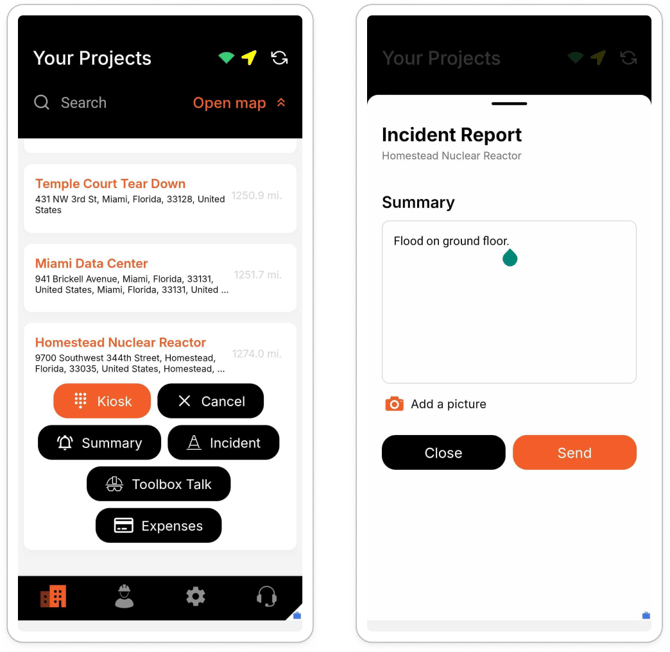
- Mobile app — Workers submit an incident directly through the app, including notes and photos. This must be enabled via Company Settings → Mobile App → Enable Incident, and can be overridden per worker under Worker Profile → Mobile Settings.
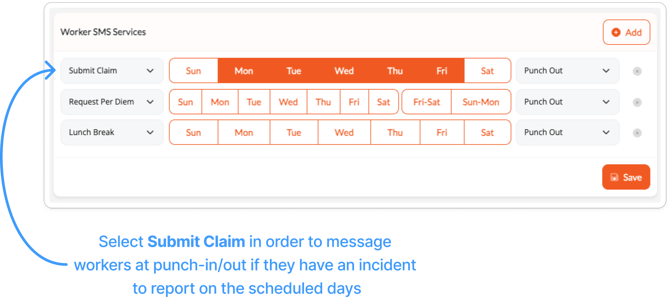
- SMS (Submit Claim) — Workers receive an automated text after punching out asking if they have an incident to report. This is configured per project under Project Settings → Worker SMS Services.
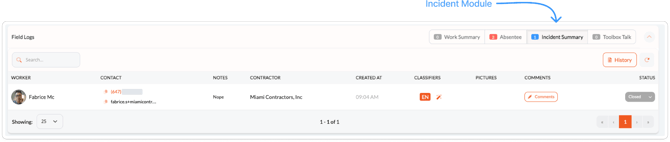
What information is captured on an incident record?
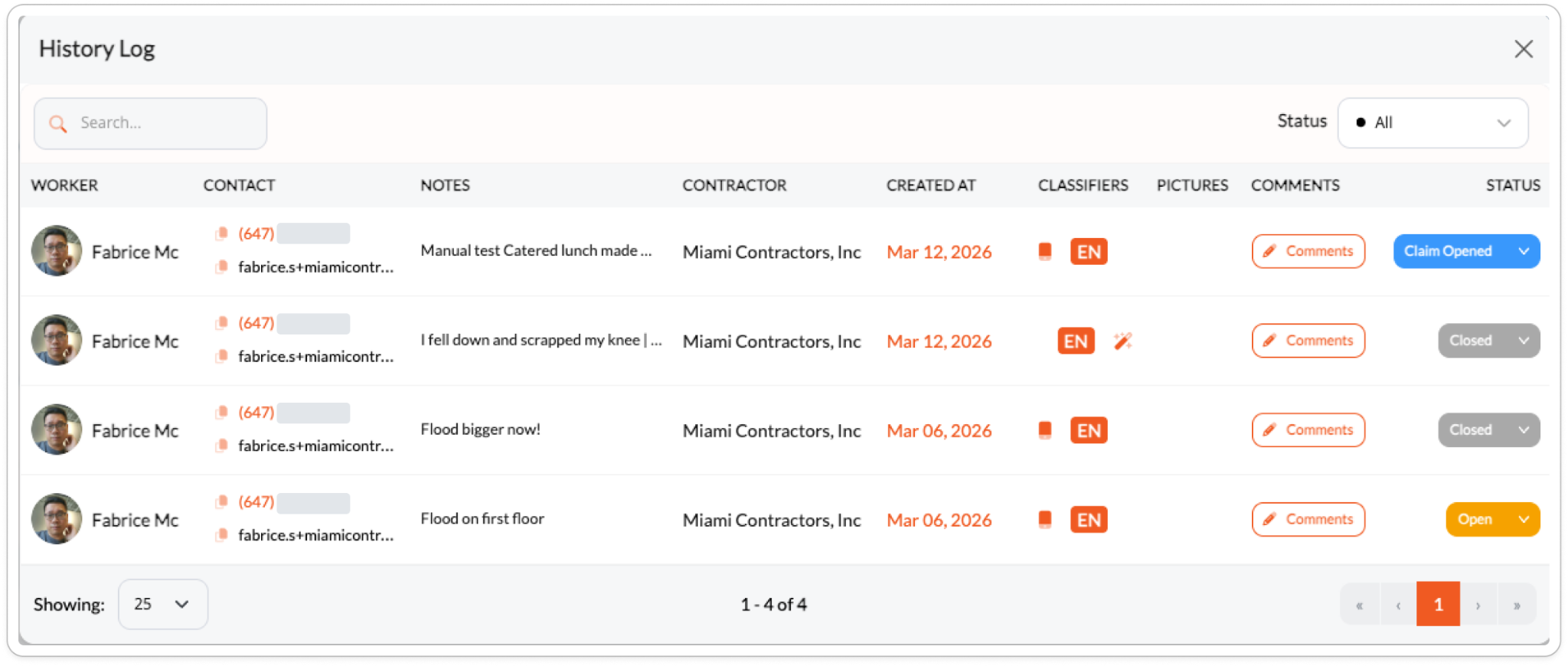
Each incident record displays the worker's name, contact information, notes describing the incident, contractor, time created, any photos submitted, and the current status.
Can I be notified when an incident is submitted?
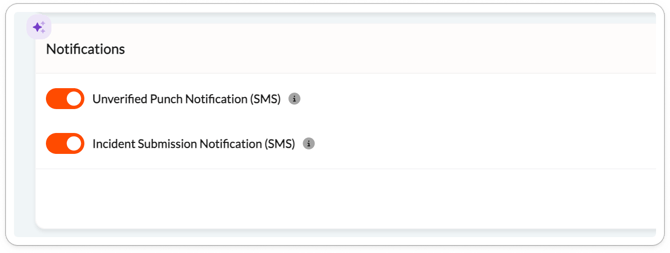
Yes. Enable Incident Submission Notification (SMS) under Project Settings → Notifications to receive an SMS alert whenever an incident is logged on the project, whether through the mobile app or via SMS.
Reviewing incidents
How do I review and manage an incident?
-
Step 1 — Go to your project and select Field Logs → Incident Summary.
-
Step 2 — Locate the incident you want to review.
-
Step 3 — Click Comments to add notes or context to the record.
-
Step 4 — Use the Status dropdown on the right to update the incident's current state.
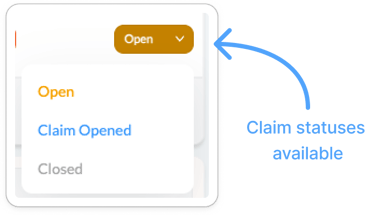
What are the incident status options?
- Open — The incident has been reported and is under review.
- Claim Opened — A formal claim has been initiated for this incident.
- Closed — The incident has been fully reviewed and resolved. No further action required.
How do I view incidents from previous days?
Click the History button in the top-right corner of the Incident Summary tab. This displays all safety incidents on the project — past and present — providing a complete record for auditing and compliance purposes.
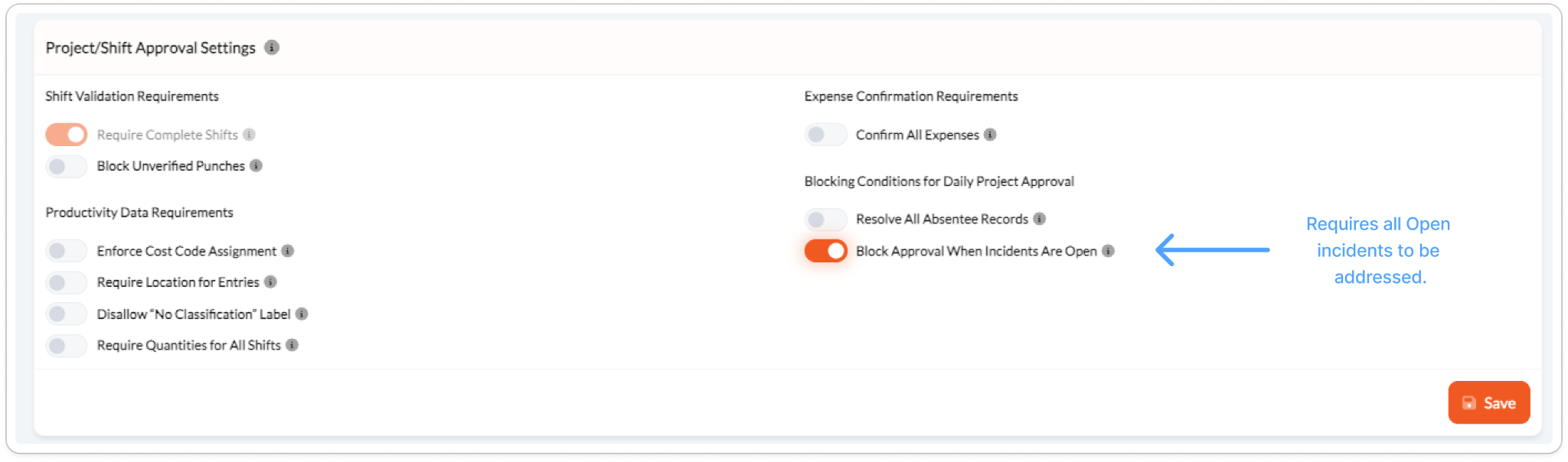
💡 Incidents must be resolved before the day can be fully approved if your project has the Resolve All Incident Reports blocking condition enabled under Project Settings → Punch Settings.