![smartbarrel-logo-1.png]](https://ask.smartbarrel.io/hs-fs/hubfs/smartbarrel-logo-1.png?height=39&name=smartbarrel-logo-1.png)
Things to consider
These steps apply to both workers and users.
-
Profile must be active.
After access is restricted, the team member can't punch in or out for that project, and the punch option will be greyed out in the app. - Devices won't recognize the worker for that project.
If the worker punches in on a device, it won't recognize their phone number and will show a "Worker Not Found" error. - Restricting access does not deactivate the profile.
The worker keeps access to any other projects they're assigned to.
⚠️ Avoid marking a worker as inactive just to take them off a job. Deactivating a profile turns off the worker's access to all projects and automatically sets an end date.
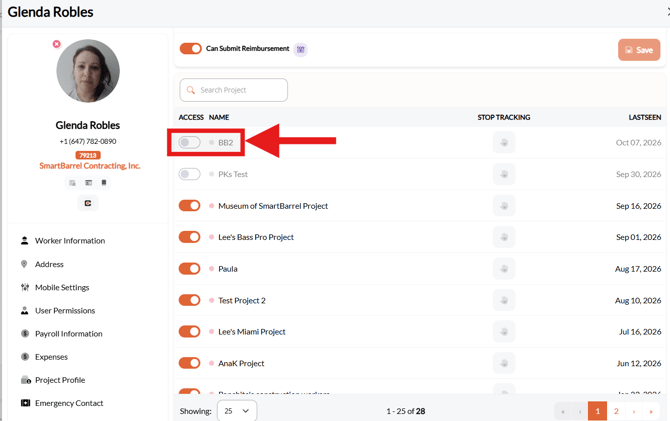
Option 1: Restrict access from the worker's profile
- Find and open the worker's profile.
- Scroll down to the list of recent project access.
- Find the project you want to restrict.
- Turn off the access toggle for that project.
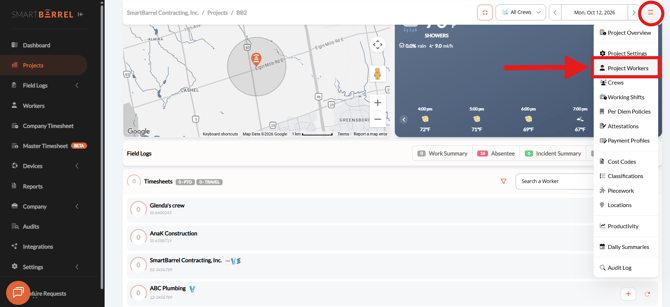
Option 2: Restrict access from the project's worker list
- Go to the project.
- Click the menu icon (☰) in the top right corner.
- Select Project Workers to open the project's worker list.
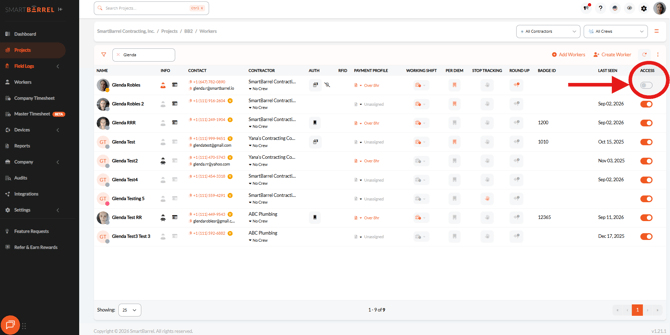
4. Enter the team member's name in the search field.
5. Turn off the access toggle next to their name
Video: