![smartbarrel-logo-1.png]](https://ask.smartbarrel.io/hs-fs/hubfs/smartbarrel-logo-1.png?height=39&name=smartbarrel-logo-1.png)
What Are Default Settings?
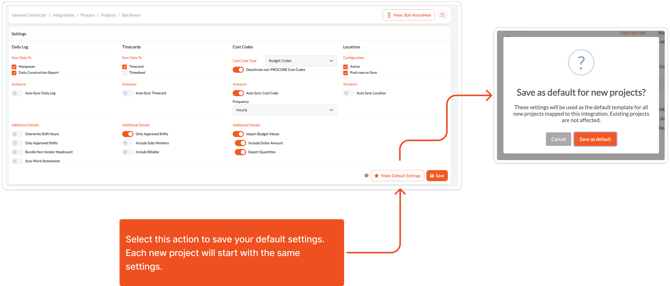
Default Settings allow your company to define a standard Procore configuration that automatically applies to newly linked projects.
When a new project is mapped to Procore, SmartBarrel copies the saved default settings into the new project as its starting configuration.
These settings can include:
- Daily Log sync preferences
- Timecard settings
- Cost code configuration
- Workforce sync options
- Approval requirements
- Billing and quantity export settings
- Other project-level integration preferences
How To Save Default Settings
- Open a project connected to Procore.
- Navigate to the project’s Integration Settings page.
- Configure the settings exactly how you want future projects to start.
- Select Make Default Settings.
- Confirm by selecting Save as default in the confirmation modal.
Any future projects linked to Procore automatically inherit those settings.
Important Notes
-
Admin Only
-
Only admin users can create or update default settings templates.
-
Non-admin users do not see the Make Default Settings button.
-
-
Existing Projects Are Not Updated
-
Default settings only apply when a new project is linked.
-
Updating the template later does not retroactively change settings on existing projects.
-
-
Standard Save Still Works
-
The existing Save button continues to save settings only for the current project.
-
Make Default Settings is a separate action used to update the company-wide default template.
-
Why Use Default Settings?
Using default settings helps:
- Reduce repetitive setup work
- Keep project configurations consistent
- Speed up onboarding for new projects
- Minimize configuration errors across teams