![smartbarrel-logo-1.png]](https://ask.smartbarrel.io/hs-fs/hubfs/smartbarrel-logo-1.png?height=39&name=smartbarrel-logo-1.png)
How it works
SmartBarrel compares a worker's Working Shift schedule with the time they actually worked that day. Any time not covered is a gap.
Example: Henrik is on the 1st Shift, scheduled 6:00 AM to 2:00 PM (8 hours). He worked 7:00 AM to 1:00 PM (6 hours).
That leaves 2 hours missing, in two gaps:
| Gap | |
|---|---|
| 6:00 AM to 7:00 AM | 1 h late start |
| 1:00 PM to 2:00 PM | 1 h early out |
If a worker leaves and comes back mid-day, the time in between shows as missing.
You pick an earn code for each gap. Henrik was in training in the morning, so that gap gets EA - Excused Absence. He left early without notice, so the afternoon gets UA - Unexcused Absence. Now Henrik's full 8 hours are accounted for in the timesheet.
Turn it on
Tracking is set per Working Shift and is off by default.
- Open the project and go to Working Shifts.
- Click the Working Shift you want to track to open its settings.
- At the bottom of the Shift Schedule card, check Track Shift Hour Discrepancies.
It saves right away. No Save button needed.
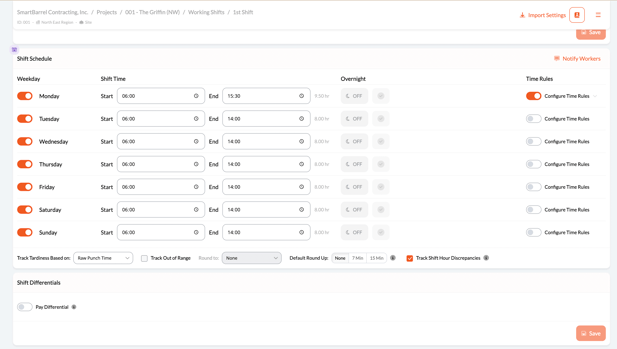
Before you start: add at least one earn code of type TIME OFF in Company > Code Management. Without one, you can see the gaps but can't fill them.
Find discrepancies on the timesheet
When a worker has missing time, an hourglass icon shows next to the hours on their timesheet rows.
- Yellow: at least one gap still needs an earn code.
- Green: every gap is covered.
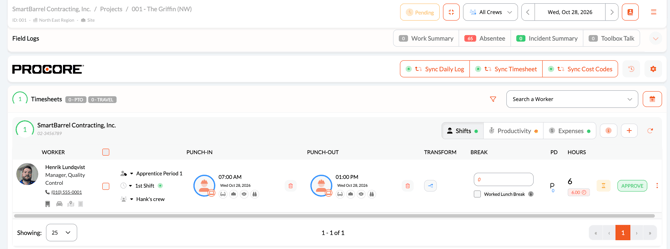
A few things to know:
- All shifts that day count together. If a worker has several shifts on the same day under the same Working Shift, SmartBarrel checks them as a group. Every row in the group shows the same icon, and clicking any of them opens the same window.
- It shows up once the day is closed. The icon appears after all of the worker's shifts for that day are closed. If a worker is still clocked in, you won't see it yet.
- Overnight shifts belong to the start day. A 10:00 PM to 6:00 AM shift is checked on the day it started.
- Tiny gaps are ignored. Anything under 1 minute (leftover seconds from punches) doesn't count. Gaps of 1 minute or more do.
- No Working Shift, no discrepancy. If a shift isn't assigned to a Working Shift, or the Working Shift has no schedule for that day, there's nothing to compare against.
Fill the missing time
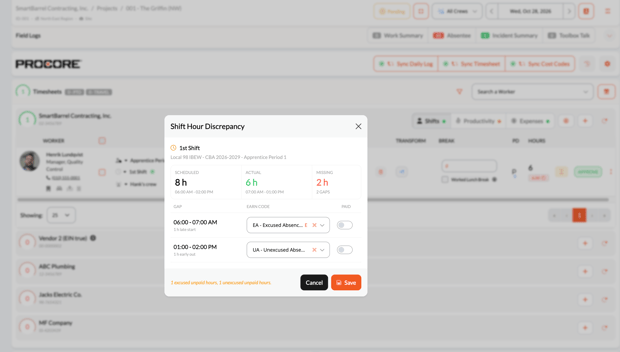
- Click the hourglass icon on any row in the group.
- Review the summary at the top:
- Scheduled: the hours the Working Shift expects.
- Actual: the hours worked.
- Missing: total missing hours and how many gaps.
- For each gap, pick an Earn Code. Codes marked E are excused.
- Turn on Paid for any gap that should be paid. It's off by default.
- Check the total at the bottom, for example "1 excused unpaid hours, 1 unexcused unpaid hours."
- Click Save.
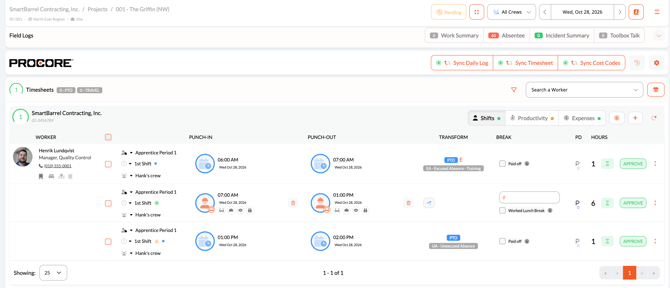
SmartBarrel creates one PTO shift per filled gap. Each one:
- Uses the exact start and end time of the gap.
- Keeps the same Working Shift and Union Classification as the worked shifts.
- Shows the same hourglass icon as the rest of the group.
You don't have to fill every gap. Fill what you know now and leave the rest blank. The icon stays yellow until every gap is covered.
Approving the day
Discrepancies are a helper, not a blocker. You can approve a day even with gaps still open.
Just know that PTO shifts can't be added to an approved day or a locked pay period. If you approve first and want to fill gaps later, you'll see:
This day is approved. Unapprove it to fill the missing time.
Unapprove the day, fill the gaps, then approve again.
Who can use it
| Permission | Can see discrepancies | Can fill gaps |
|---|---|---|
| Timesheet Edit | Yes | Yes |
| Timesheet Suggest Edits only | Yes | No |
Good to know
- Late flags still show. If you also track tardiness, a late arrival shows both the late flag and a "late start" gap. That's expected. The two work separately.
- Changes are recalculated automatically. Edit a punch, a Working Shift, a classification, or one of the PTO shifts, and the discrepancy updates. Deleting or restoring a PTO shift updates it too.
- Moving a PTO shift reopens the gap. If you move a PTO shift from this flow to a different Working Shift, that time is missing again, and the icon goes back to yellow.
- Turning tracking off keeps your PTO shifts. Only the icons and the window are hidden. Turn it back on and SmartBarrel recalculates, counting the PTO shifts you already made.
FAQ
Why don't I see the icon on a worker who left early? They may still have an open shift that day, or the gap may be under 1 minute. Also check that tracking is turned on for that Working Shift.
Why is the earn code list empty? You need at least one TIME OFF earn code in Code Management.
Can I undo a PTO shift I created here? Yes. It's a normal PTO shift. Delete it on the timesheet and the gap comes back. Restore it and the gap is covered again.