![smartbarrel-logo-1.png]](https://ask.smartbarrel.io/hs-fs/hubfs/smartbarrel-logo-1.png?height=39&name=smartbarrel-logo-1.png)
Once your workers, projects, and cost codes are syncing, SmartBarrel can send time the other way. Approved time is exported to BuildOps as a time entry against the right project and cost code, with the hours recorded against your BuildOps payroll hour types.
Before you start
- BuildOps must be connected and the project imported (see: How do you Sync Projects with BuildOps?).
- Your BuildOps account needs TimeTrack 2.0 enabled. Ask your BuildOps representative if you are not sure.
- You need the Sync Timesheets permission for BuildOps.
- To send Overtime and Double Time, your earn codes must be mapped first (see: How do you Sync Earn Codes with BuildOps?).
Turn on timecard export
- Open the Project Integration Settings
- Turn on Enable Timecard Sync.
- Choose the settings below that match how your team works, then save.
Export settings are set per project, so you can roll it out one project at a time. Admins can use Make Default Settings to apply the same setup to new projects.
Export settings
All of these are off by default.
| Setting | What it does |
|---|---|
| Sync Only Approved Shifts | Only send time from shifts that have been approved in SmartBarrel. |
| Only Sync Approved Records | Also require the Master Timesheet record approval before time is sent. Available when Sync Only Approved Shifts is on. |
| Use SmartBarrel Overtime | Use SmartBarrel Master Timesheet overtime settings (Master Timesheet must be enabled on your account) |
| Update Approved Timecards | Allow a later sync to change an entry that BuildOps has already approved. When off, approved entries are left alone. |
| Match Shift Status | Send approved SmartBarrel time across as approved, and return it to submitted if you un-approve it. Only takes effect while Update Approved Timecards is on. |
How the Regular, Overtime, and Double Time split works
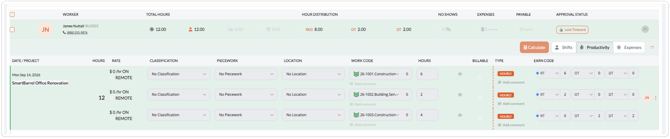
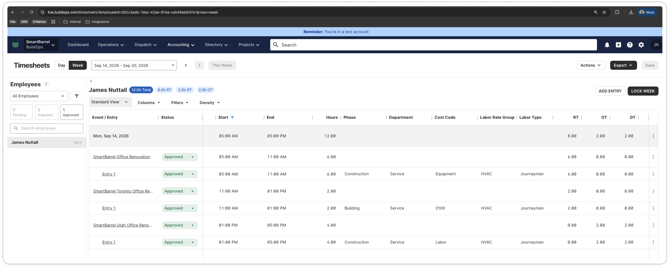
Turn on Use SmartBarrel Overtime and your time is sent against the matching BuildOps hour type. SmartBarrel uses the overtime it has already calculated for the shift from Master Timesheet, so nothing is worked out a second time.
A day with 8 regular hours and 4 overtime hours arrives in BuildOps as one time entry carrying 8 hours of Regular Time and 4 hours of Overtime.
With the setting off, all time continues to export as Regular Time.
What happens when time changes after it was sent?
| Change in SmartBarrel | What happens in BuildOps |
|---|---|
| Hours are edited | The entry is updated in place to match the new hours. |
| Overtime drops back to zero | The overtime hours are set to zero rather than removed, so the entry stays linked. |
| A shift is deleted | The matching BuildOps entry is dismissed. |
| A shift is un-approved | With Match Shift Status on, the entry returns to submitted. |
Why didn't my time export?
| Reason | Fix |
|---|---|
| An hour type is not mapped or not classified | The message names the code, for example "Double Time (DT2)". Map and classify it on the Earn Codes screen, then sync again. |
| The worker is missing labor information | The worker needs a labor rate group and labor type in BuildOps. Add them in BuildOps and run a Worker Sync. |
| The shift is not approved | Approve the shift, or turn off Sync Only Approved Shifts. |
| The entry is already approved in BuildOps | Turn on Update Approved Timecards if you want later changes to overwrite it. |
SmartBarrel never sends overtime across as regular time when a code is missing. It holds the timecard back instead, so your payroll is not affected by a mapping gap.
FAQ
Can I send time for one project and not another? Yes. Enable Timecard Sync is a per project setting.
Does time export automatically? No, time is synced per project per day. You can use the Sync Dashboard to sync more than one project at a time.
Where do I see the results? Open Integrations > BuildOps > Logs. Each run lists what was sent, what was updated, and any timecards that were held back along with the reason.