![smartbarrel-logo-1.png]](https://ask.smartbarrel.io/hs-fs/hubfs/smartbarrel-logo-1.png?height=39&name=smartbarrel-logo-1.png)
Every scheduled report email arrives with the subject "SmartBarrel Reports - {Report Name}" unless you choose your own. A custom subject is useful when the same report goes to different people for different reasons, for example a weekly payroll run for your payroll team and a daily cost code summary for your project managers. Each schedule can have its own subject, and it applies to every recipient on that schedule.
What you'll need
- The Schedule Reports permission on your user profile.
- Schedule Reports turned on in your company settings. See How to Schedule Reports for External Recipients for where to enable it.
How do you add a custom email subject?
- Navigate to the Reports tab and select the report you want to schedule.
- Click Schedule Report. If the report is already scheduled, open the existing scheduled report instead.
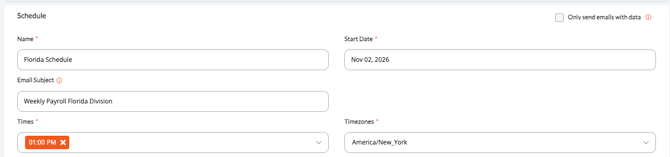
- In the schedule settings, find Email Subject, directly below Name.
- Type the subject you want, up to 150 characters.
- Set the rest of the schedule and recipients as usual.
- Click Save.
The next email sent by that schedule uses your new subject.

What does the subject look like?
| Email Subject field | Subject your recipients see |
|---|---|
| Weekly Payroll | Weekly Payroll |
| (left blank) | SmartBarrel Reports - Custom Payroll Export |
Is anything added to my subject?
No. The subject is sent exactly as you typed it, with no prefix or suffix. The greyed "SmartBarrel Reports - " text you see in an empty field is only a hint and is never sent.
What happens if I leave it blank?
The email keeps the standard subject, "SmartBarrel Reports - {Report Name}". Hover the ⓘ icon next to the field for a reminder.
Can the same report have different subjects?
Yes. The subject belongs to the schedule, not the report. Create a schedule for each audience and give each one its own subject.
Do my existing schedules change?
No. Schedules created before this feature keep the standard subject until you edit them and add one.
How do I go back to the standard subject?
Open the scheduled report, clear the Email Subject field and click Save. A field that only contains spaces counts as blank.
Does every recipient get the same subject?
Yes. Internal and external recipients on a schedule all receive the same subject.
Troubleshooting
| Issue | What to check |
|---|---|
| I can't see the Email Subject field | Make sure you are on the schedule settings of the report and that you have the Schedule Reports permission. |
| The email still has the old subject | Changes apply to the next email the schedule sends. Reopen the schedule to confirm your subject was saved. |
| My subject was cut off | The field holds up to 150 characters. Shorten the subject so the important words come first. |