![smartbarrel-logo-1.png]](https://ask.smartbarrel.io/hs-fs/hubfs/smartbarrel-logo-1.png?height=39&name=smartbarrel-logo-1.png)
BuildOps uses payroll hour types, such as Regular Time, Overtime, Double Time, and PTO, to tell payroll how each hour should be paid. The Earn Code Sync brings those hour types into SmartBarrel so your exported time can be sent against the right one. Until an hour type is mapped, SmartBarrel cannot send overtime as overtime.
Before you start
- The BuildOps integration must be connected (see: How do you set up the BuildOps Integration?).
- You need admin access in SmartBarrel. The Earn Codes screen is admin only.
Sync your earn codes
- Go to Integrations > BuildOps > Earn Codes.
- Click Sync Earn Codes and confirm.
Your BuildOps payroll hour types appear in the list. This sync is manual, so run it again whenever you add or change an hour type in BuildOps.
Read the status badges
Each hour type shows its short code together with its full name, for example RT (Regular Time), because many accounts use similar codes such as RT and RT2. Every row carries a status:
| Status | What it means | What to do |
|---|---|---|
| Not mapped | No SmartBarrel earn code is linked to this hour type. | Map an earn code to it. |
| Needs classification | An earn code is linked, but it has no type set, so it cannot be used yet. | Open the earn code and set its type. |
| Ready | Mapped and classified. | Nothing. Time exports correctly. |
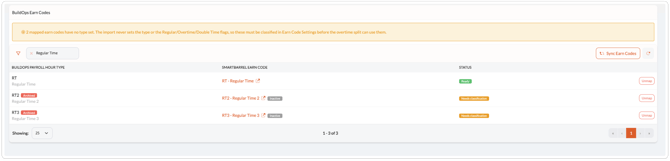
Classify a mapped earn code
Classifying is what tells SmartBarrel whether a code is regular, overtime, or double time. It is done in your earn code settings, not on the mapping screen.
- On the Earn Codes screen, click the mapped earn code. It links straight to Company > Codes.
- Set the code's type and save.
- Return to the Earn Codes screen. The status changes to Ready.
Classifications you set are never overwritten by a later sync, so you only need to do this once per code.
Why didn't my time export?
If an hour type is not mapped, or is mapped but not yet classified, the timecard is held back rather than sent. The message names the code it could not use, for example "Double Time (DT2)". SmartBarrel never sends overtime across as regular time, because that would create a payroll error.
Map and classify the code, then run the sync again.
FAQ
Do earn codes sync automatically? No. Earn codes are synced manually from the Earn Codes screen. Your hour types rarely change, so there is no schedule for them.
Why is an hour type missing from the list? If two BuildOps hour types share the same code, SmartBarrel cannot tell them apart and skips them. This is recorded in the sync log.
What happens if an hour type is removed in BuildOps? The mapping is removed. The SmartBarrel earn code is only deactivated if nothing else is using it. If it is still used by your earn code settings, a payment profile, or a working shift, it stays active and the log explains why.
Where do I see the results? Open Integrations > BuildOps > Logs and filter for the Earn Codes action. Each run lists what was created, matched, updated, and deactivated.