![smartbarrel-logo-1.png]](https://ask.smartbarrel.io/hs-fs/hubfs/smartbarrel-logo-1.png?height=39&name=smartbarrel-logo-1.png)
Rate information is hidden by default across the platform to protect sensitive employee information. This is a security feature that prevents unauthorized users from viewing or editing sensitive payroll data.
Required Permissions
Access to rate information is controlled by Money permissions in the user's profile.
Enabling this setting does two things at the same time:
- Grants the ability to view rate fields: Billable Rate, Travel Allowance, and Vehicle Allowance
- Grants the ability to edit those same fields
⚠️ Note: If you're not seeing a Rate Column, it means the Money permission isn't enabled on your account.
How to View Rate Information
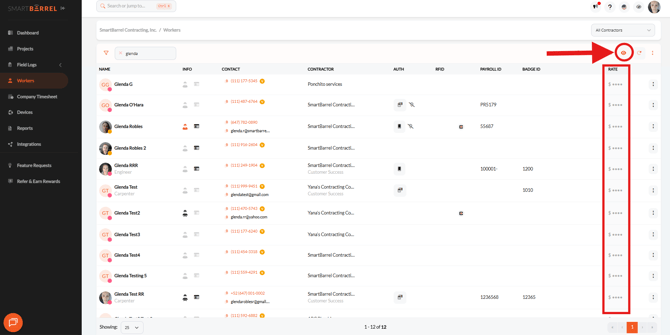
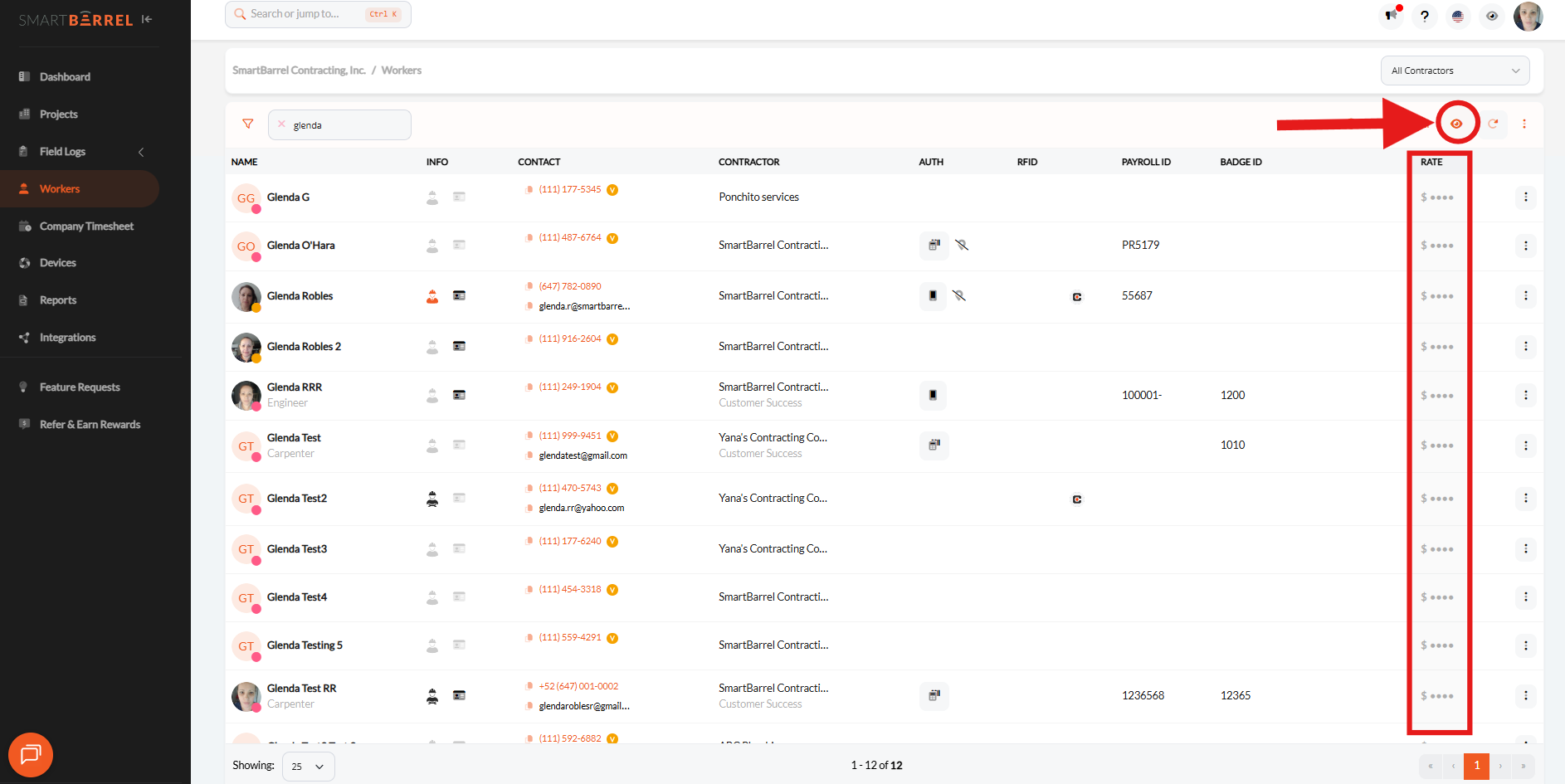
Even for users with Money permission enabled, rate information is not shown by default. It must be manually revealed using the eyeball icon.
To reveal rate fields:
- Navigate to the Worker tab.
- Locate the eyeball icon (top-right corner).
- Click the icon.
State: Open eyeball → Hidden (default) 
How to Hide Rate Information from Other Users
Users without the Money permission will never be able to view rate information, regardless of whether it's currently shown or hidden for anyone else.
If you have Money permission enabled, you can hide rate information again so it isn't visible to others viewing the same screen.
To hide rate fields:
- Click the same eyeball icon a second time.
- This reverts the rate information to its default hidden state for anyone viewing that screen.
State: Visible (after toggle)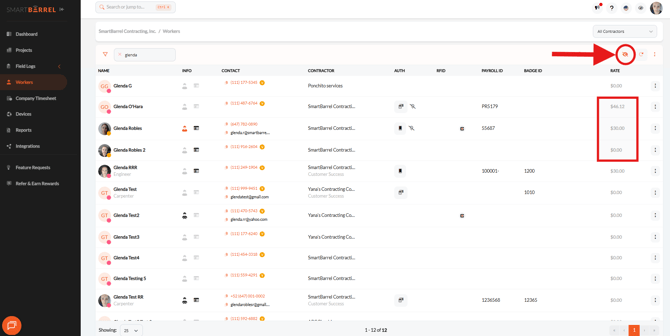
⚠️ Note: This toggle only affects users who already have Money permission enabled. It does not grant or restrict access for other users. It simply controls whether the data is currently displayed to those who are already authorized to see it.
Troubleshooting
| Symptom | Cause | Resolution |
|---|---|---|
| No Rate column visible under Worker tab | Money permission not enabled | Ask an administrator to enable "See Money" → Worker Permissions |
| Rate column missing despite having permission | Visibility toggle is in "hidden" state | Click the eyeball icon |
| Can view rates but can't edit | Not expected behavior — viewing and editing are tied to the same permission | Confirm Money permission is fully enabled; contact support if the issue persists |
| Rates visible to other users but not to you | Each user's access depends on their own Money permission, not a shared setting | Request Money permissions be enabled on your account specifically |
Note: If you've confirmed your permissions are set correctly and you're still running into issues, reach out to our support team for further assistance.