![smartbarrel-logo-1.png]](https://ask.smartbarrel.io/hs-fs/hubfs/smartbarrel-logo-1.png?height=39&name=smartbarrel-logo-1.png)
Things to Consider
- External recipients do not need a SmartBarrel account to receive or view scheduled reports. They will just receive the report by email.
- Check the recipient's email address is entered correctly before saving.
- Reports are sent automatically on the scheduled date and time.
Required Permissions
Before scheduling a report for an external recipient, make sure the following settings are enabled:
- Schedule Reports permission must be enabled on your user profile.
- Allow External Recipients at the company settings level.
How to Enable Permissions
Company Settings
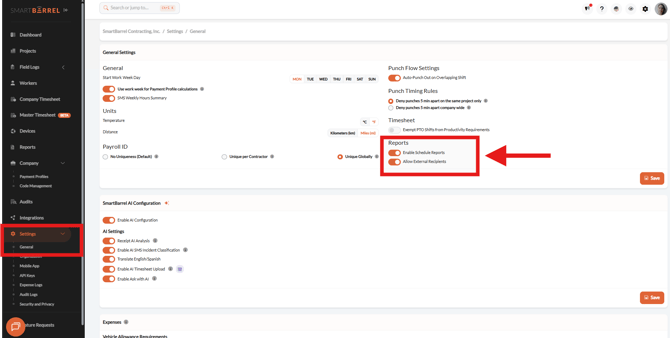
- Go to Settings from the left-hand menu
- Click General, then scroll down to Reports.
- Enable both Schedule Reports and External Recipients.
User Profile Permissions
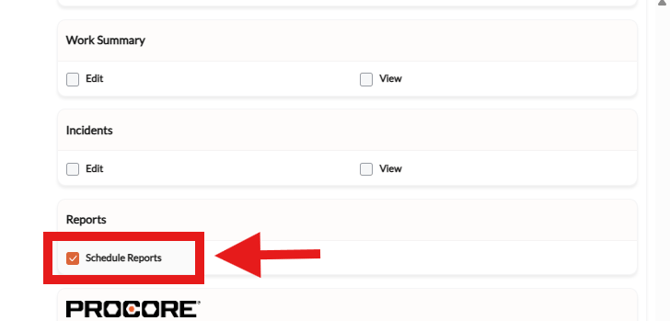
- Someone with admin access needs to enable it.
- Scroll down to Reports.
- Enable Schedule Reports.
Steps to Add External Recipients
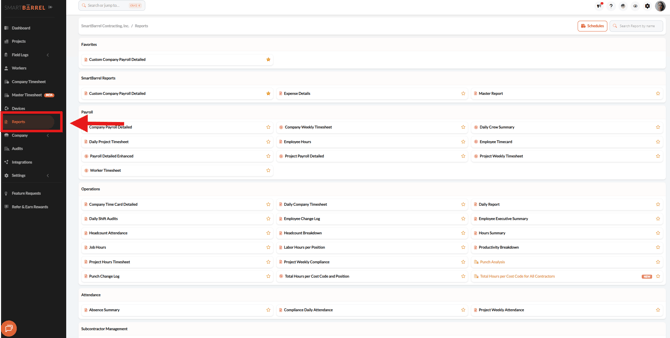
Step 1. Navigate to the Reports tab and select the report you want to schedule.
Step 2. Click Schedules Report. If the report is already scheduled, open the existing scheduled report instead of creating a new one. 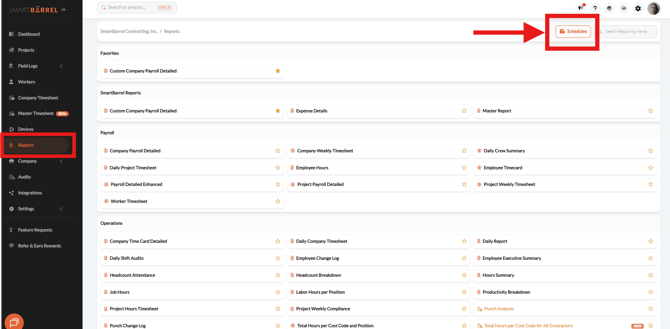
Step 3. Under the Emails section, click the (+) icon to add an external email address.
* You can repeat this to add as many external recipients as needed. 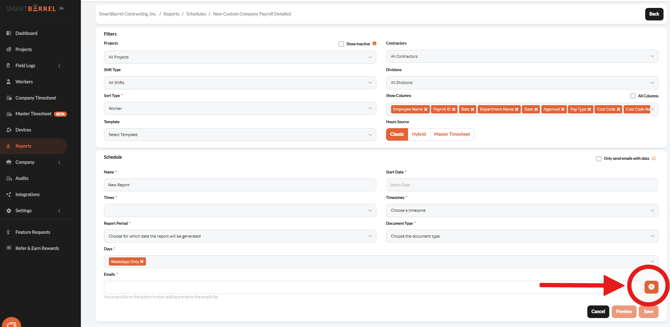
Step 4. Type the external recipient's email address, click (+) again, then click OK.
*Repeat this step to add any additional recipients. 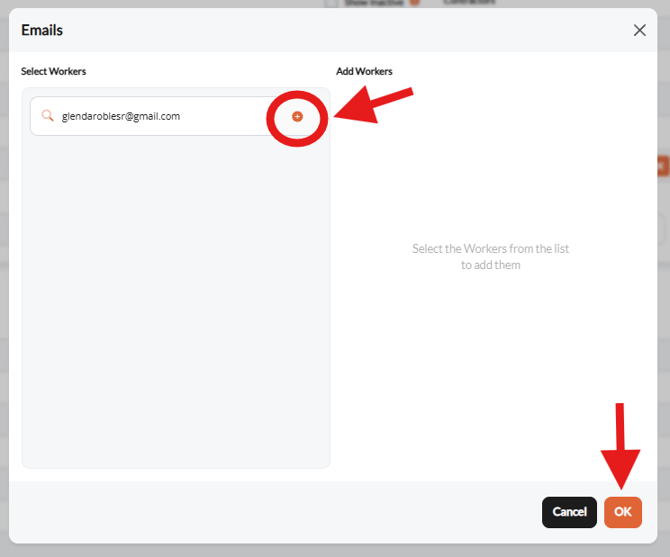
Step 5. Set the report’s schedule and review settings. Click Save.
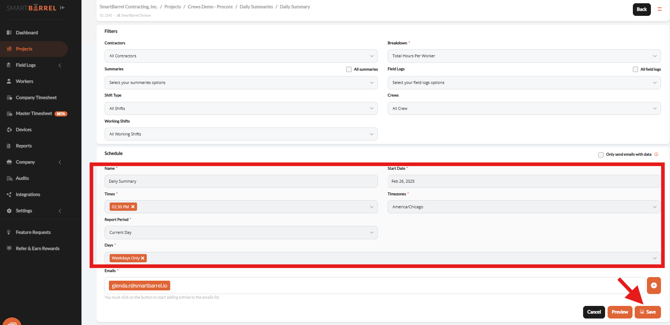
⚠️ Note: Click Preview to see how the report will look before it is sent.
Common Report Issues
-
I don't see an option to add an external email address.
This usually means a permission hasn't been enabled yet. Ask your company admin that Schedule Reports is turned on in your user profile, and that Allow External Recipients is enabled under Company Settings (Settings → General → Reports).
-
The recipient never received the report.
Double check the email address entered when setting up the schedule. Since external recipients don't have a SmartBarrel account, even a small typo means the report has nowhere to go. You can open the scheduled report and review the address under the Emails section.
- I need to change who receives the report.
Open the existing scheduled report, go to the Emails section, and add, remove, or edit recipients the same way it was originally added, and save changes.