![smartbarrel-logo-1.png]](https://ask.smartbarrel.io/hs-fs/hubfs/smartbarrel-logo-1.png?height=39&name=smartbarrel-logo-1.png)
Table of Contents:
-
Feature Overview
-
How the pieces fit
-
Agreement statuses
-
How shifts get their classification
-
Automatic fill on new shifts
-
Enforce Union Classification
-
Permissions: Who can do what?
-
-
Setup Guide
-
Before you start
-
Step 1: Create a union
-
Step 2: Add an agreement
-
Step 3: Add classifications
-
Option A: Add one at a time
-
Option B: Import from another agreement
-
Option C: Upload a CSV
-
-
Step 4 (optional): Duplicate an agreement
-
Step 5: Attach agreements to a project
-
Step 6: Set each worker’s home classification
-
Step 7: Classify shifts
-
Step 8 (optional): Turn on Enforce Union Classification
-
-
FAQ and Troubleshooting
-
Frequently Asked Questions
-
Troubleshooting Tips
-
1. Feature Overview
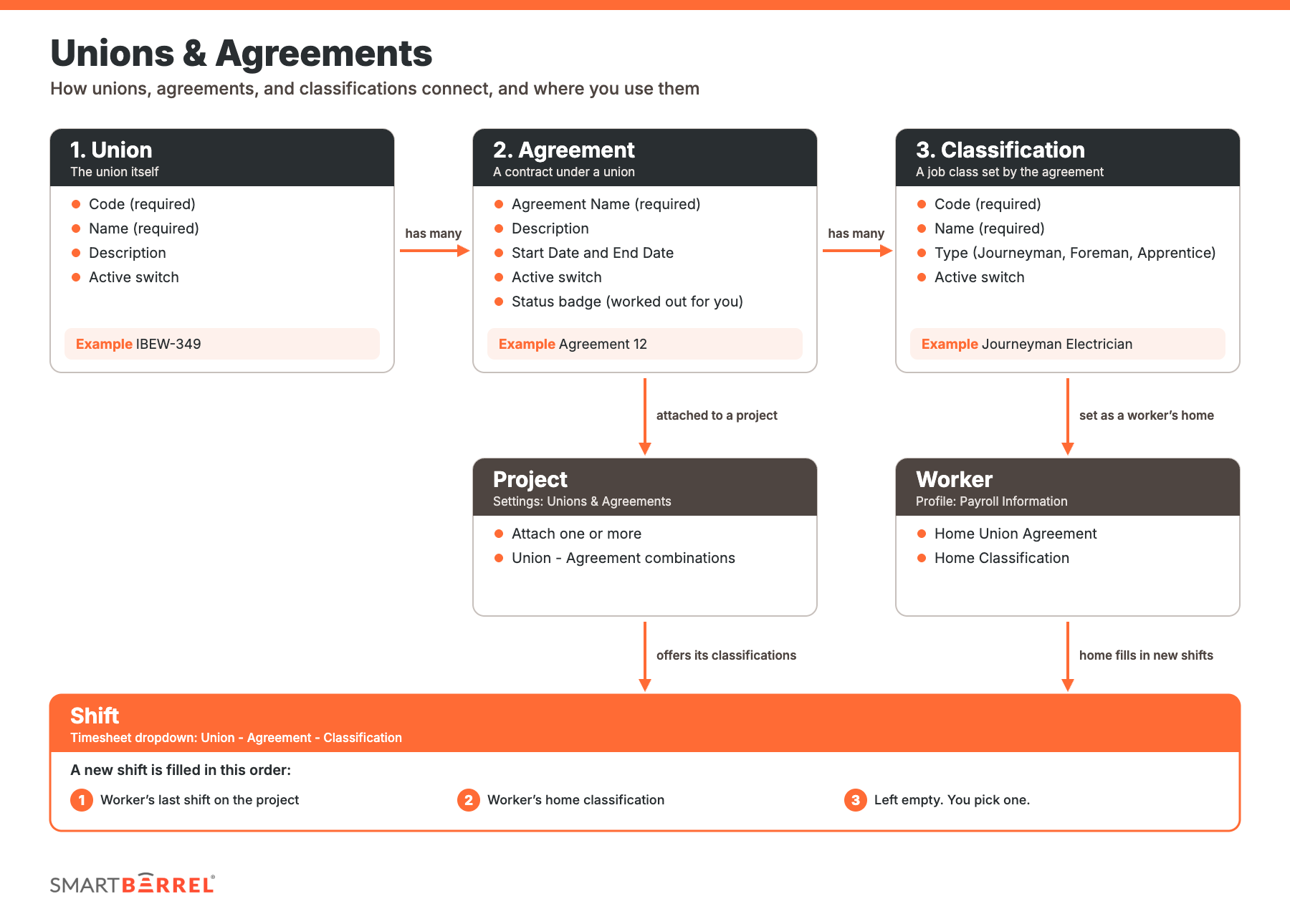
Unions & Agreements gives you one place to manage the unions your crews work under. You set up each union, the agreements under it, and the classifications each agreement defines. Agreements will be assigned to projects to define the classifications allowed to be used. Classifications can be assigned to shifts, and automated from a worker's profile when applicable.
How the pieces fit
Union structure in SmartBarrel
|
Level |
What it is |
Example |
|
Union |
The local or union hall. Has a Code and a Name. |
IBEW-349 |
|
Agreement |
CBA or contract under a union. Can have start and end dates. Can be applied to 1 or many projects. |
Master CBA |
|
Classification |
A union classification defined by an agreement. Categorized by Journeyman, Foreman, or Apprentice. |
Journeyman Electrician |
Where the structure gets used:
- On a worker. Each worker can have a home Union Agreement and Classification.
- On a project. A project can work under one or more Union + Agreement combinations.
- On a shift. If a project has an agreement assigned, shifts can carry a classification automatically assigned or selected from a dropdown on the timesheet.
Agreement statuses
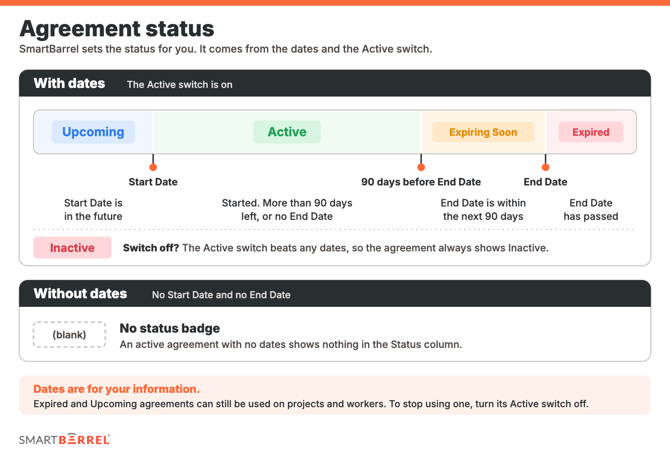
|
Status |
When you see it |
|
Inactive |
The agreement’s Active switch is off. This wins over any dates. |
|
Expired |
The End Date has passed. |
|
Upcoming |
The Start Date is in the future. |
|
Expiring Soon |
The End Date is within the next 90 days. |
|
Active |
The agreement has started and does not end within 90 days. |
|
No badge |
The agreement is active and has no start or end date. |
Good to know: Dates are for your information. An Expired or Upcoming agreement can still be active and attached to projects and workers. To stop using an agreement, toggle it inactive.
How shifts get their classification
The classification dropdown shows up on shifts for projects that have a usable agreement attached. That means an active agreement, under an active union, with at least one active classification.
Automatic fill on new shifts
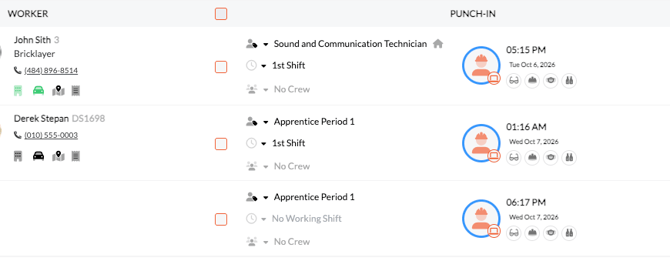
When a new shift is created, SmartBarrel fills in a classification in this order:
- The classification from that worker’s most recent shift on the same project, if the project still offers it.
- Otherwise, the worker’s home classification, if the project offers it.
- Otherwise, it stays empty and you pick one.
You can change any shift at any time. A worker's home union is indicated with a house icon in the timesheets.
Enforce Union Classification
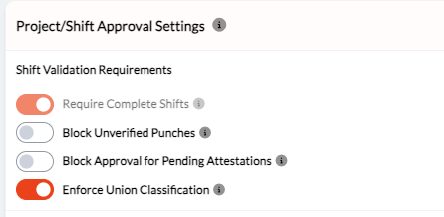
Each project has a setting called Enforce Union Classification, available when a project has at least one agreement attached.
|
Setting |
What happens |
|
On |
A shift with no union classification cannot be approved. In bulk approval, only the shifts missing a classification are blocked. The rest go through. |
|
Off |
A missing classification never blocks approval. |
Permissions: Who can do what?
|
To do this: |
You need this permission: |
|
Open the Unions & Agreements page. Create, edit, delete, activate, or deactivate unions, agreements, and classifications. Import or export classifications. |
Manage Unions & Agreements |
|
See and change the classification dropdown on shifts |
Manage Unions & Agreements |
|
Set a worker’s home Union Agreement and Classification, or use the Union Classification column in the worker upload |
Workers: See Money |
|
Attach agreements to a project and turn on Enforce Classification |
Project Settings: Edit |
Admins have every permission. For everyone else, an Admin turns on Manage Unions & Agreements in a permission template or on an individual user. It is not on by default for the standard templates.
2. Setup Guide
Before you start
- Have your list of unions, agreements, and classifications ready. Codes, names, and (if you use them) start and end dates.
- Make sure you have the Manage Unions & Agreements permission. If you do not see Unions & Agreements in the Workers menu, ask an Admin to turn it on.
Step 1: Create a union
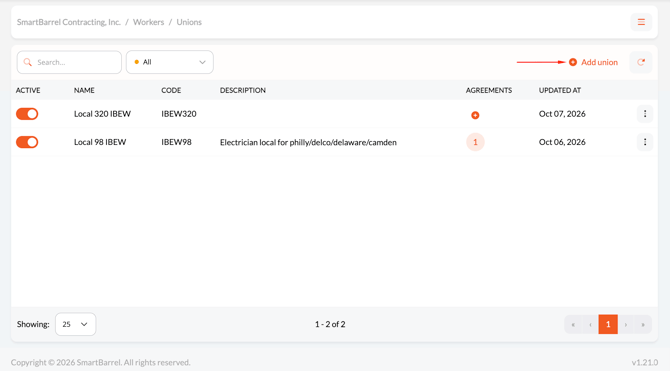
- Open Workers and choose Unions & Agreements from the menu.
- Click Add union.
- Enter a Code and a Name. Both are required. Description is optional.
- Save.
Step 2: Add an agreement
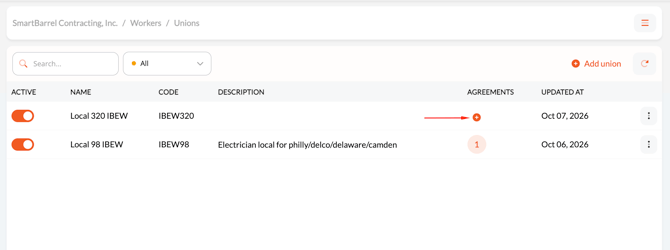
- On the union’s row, click the + in the Agreements column. If the union already has agreements, click the number to open them, then click Add Agreement.
- Enter the Agreement Name. It is required and must be unique within the union.
- Optional: add a Description, a Start Date, and an End Date.
- Save.
The agreement’s status badge fills in from the dates. See Agreement status in Part 1.
Step 3: Add classifications
Open the agreement’s classifications by clicking the + (or the number) in the Classifications column. Then pick the method that fits.
Option A: Add one at a time
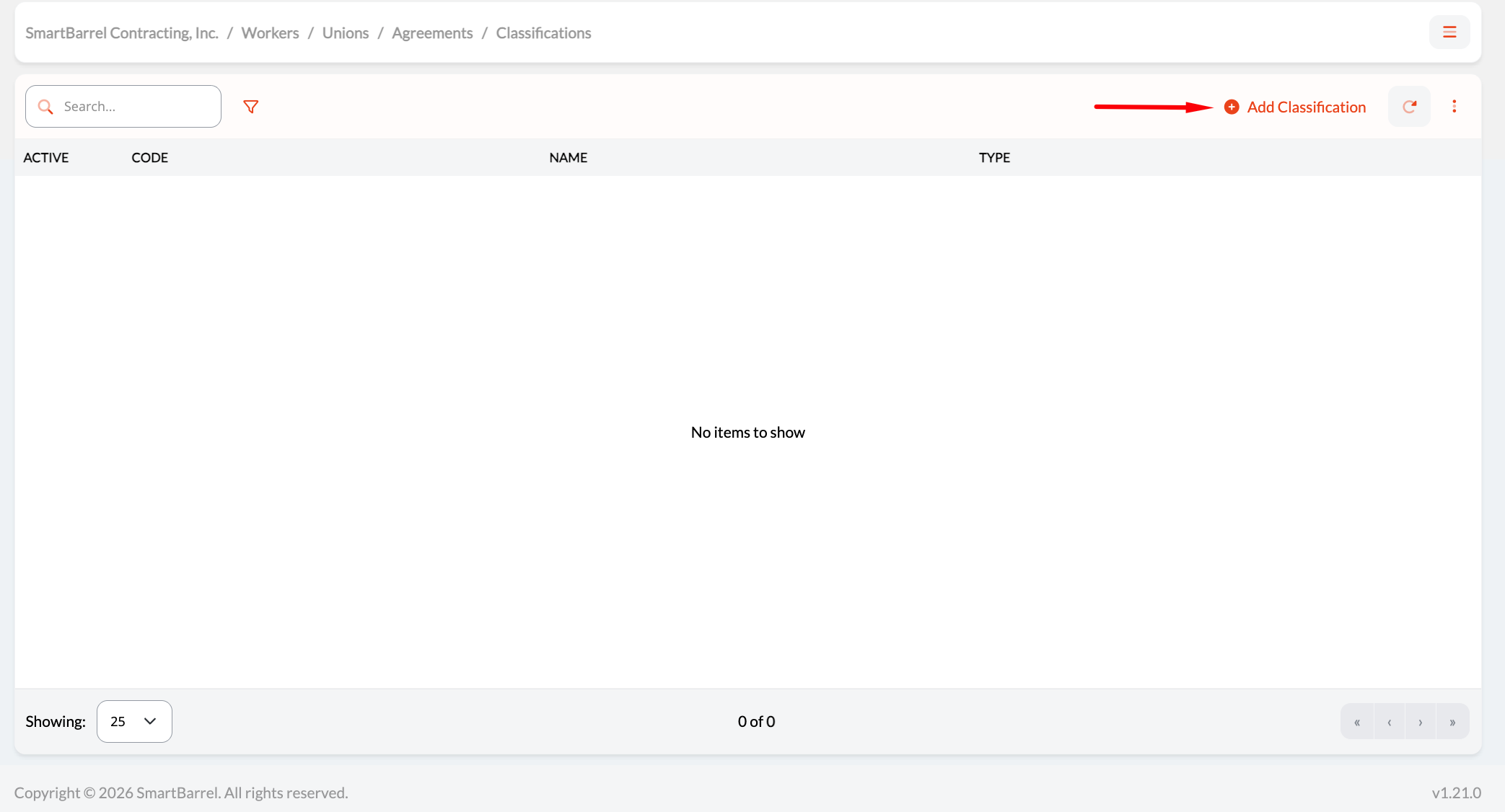
- Click Add Classification.
- Enter a Code and a Name. Both are required. The Code must be unique within the agreement.
- Optional: choose a Type (Journeyman, Foreman, or Apprentice).
- Save.
Option B: Import from another agreement
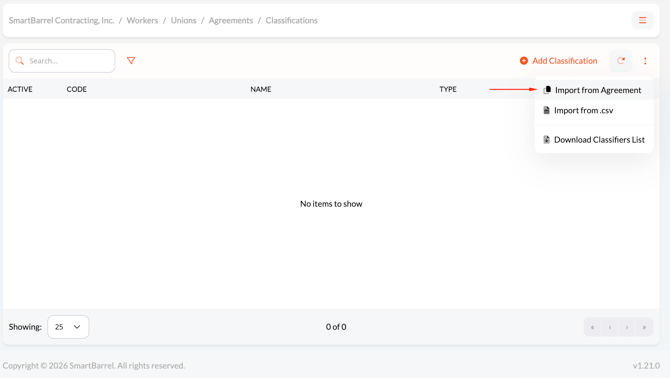
- Click the menu on the classifications page and choose Import from Agreement.
- Pick the agreement to copy from. Only agreements that have classifications are listed.
- Leave Import Rates checked to bring the rates along. Uncheck it to copy classifications with empty rates.
- Click Import.
Codes that already exist in this agreement are skipped. Nothing gets overwritten.
Option C: Upload a CSV
- Choose Import from .csv from the menu.
- Download the template and fill it in. The columns are Code, Name, Type, Reg, OT, DT, Status.
- Upload the file.
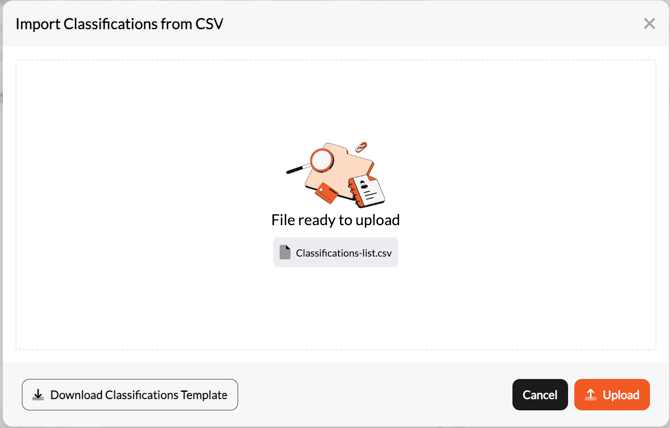
To get a copy of what you have now, choose Download Classifiers List from the menu. The file works with the CSV upload for making updates.
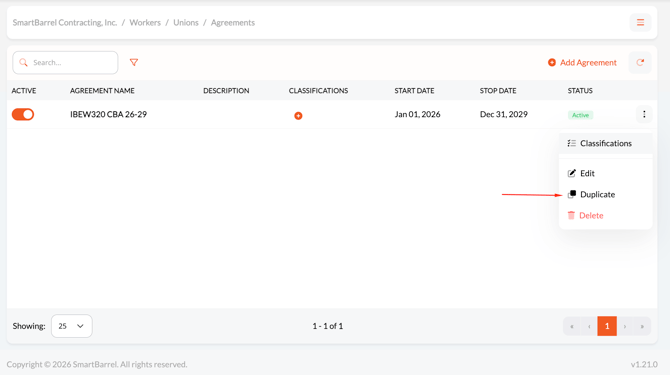
Step 4 (optional): Duplicate an agreement
Renewing an agreement or building a similar one? Duplicate it.
- On the agreement’s row, open the menu and choose Duplicate.
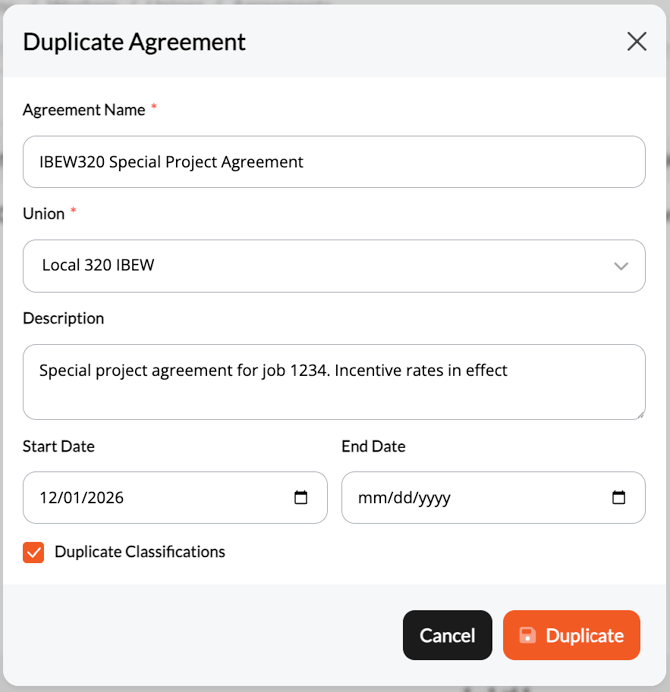
- Adjust the name. It starts as the original name followed by (Copy).
- Optional: choose a different union to copy the agreement into, and add dates. Dates start blank.
- Leave Duplicate Classifications checked to copy the classifications and their rates.
- Click Duplicate. The window stays open until the copy finishes.
Step 5: Attach agreements to a project
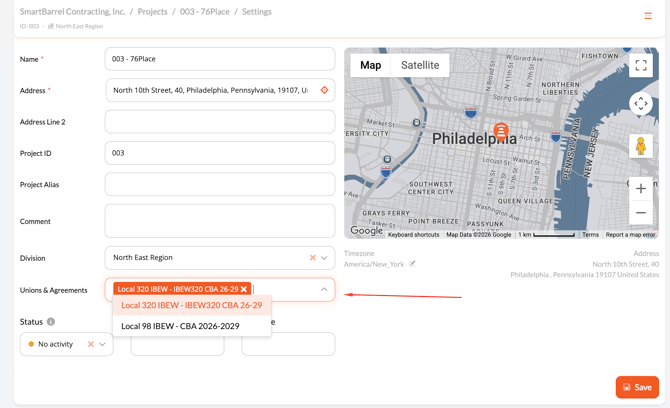
- Open the project and go to Edit, then Overview.
- Find Unions & Agreements and select one or more combinations. They read as Union - Agreement.
- Save.
Step 6: Set each worker’s home classification
You can do it one worker at a time, or in bulk.
One worker
- Open the worker’s profile and go to Payroll Information.
- Choose a Union Agreement. Options read as Union - Agreement.
- Choose a Classification. It lists only the classifications of that agreement. Pick the agreement first.
- Save.
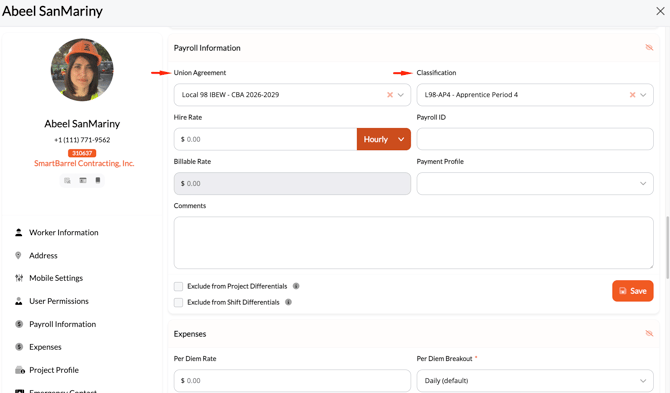
Changing the agreement clears the classification, so you will need to pick it again.
Many workers at once
The worker bulk upload and export include a Union Classification column. Fill it with the full path: Union - Agreement - Classification.
Step 7: Classify shifts
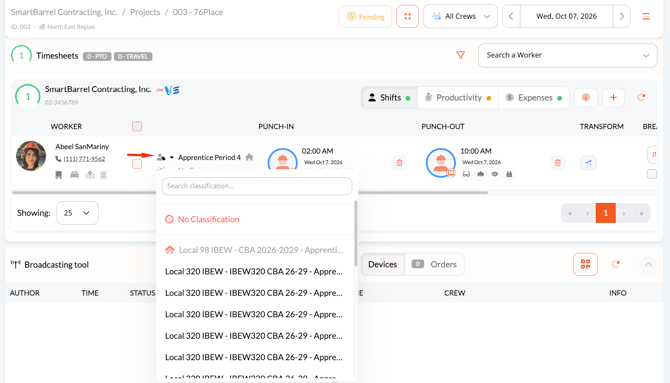
- Open a timesheet for a project that has an agreement attached.
- Find the classification dropdown on the shift.
- Pick the classification. Pick No Classification to clear it.
New shifts fill in automatically. See How shifts get their classification in Part 1. Look for the orange No Classification warning to spot shifts that still need one.
Step 8 (optional): Turn on Enforce Union Classification
- Open the project and go to Edit, then Shift approval settings.
- Switch on Enforce Union Classification.
- Save.
From now on, shifts on that project cannot be approved until they have a classification. The switch only shows when the project has an agreement attached. Removing the last agreement turns it off.
Tip. Go through the open shifts and set their classifications first, then switch Enforce on. Your team will not hit blocked approvals on day one.
3. FAQ and Troubleshooting
Frequently Asked Questions:
Can an agreement exist without dates?
Yes. Dates are optional. An active agreement with no dates shows no status badge.
Does deactivating a union deactivate its agreements?
Agreements under an inactive union cannot be newly assigned to any projects or workers..
Can a worker have more than one home classification?
No. Each worker has one home Union Agreement and one Classification. Any single shift can use a different one from the dropdown.
Is the union classification the same as the productivity classification?
No. They are separate fields. Changing one never changes the other. Both fields can be used simultaneously.
Troubleshooting Tips
|
What you see |
Why |
What to do |
|
I do not see Unions & Agreements in the Workers menu. |
Your account does not have the Manage Unions & Agreements permission. |
Ask an Admin to turn it on in your permission template or on your user. |
|
I do not see the classification dropdown on a shift. |
Either you lack Manage Unions & Agreements, or the project has no usable agreement. |
Check your permission. Then confirm the project has an active agreement, under an active union, with at least one active classification. |
|
The Unions & Agreements field is missing on the project. |
Your company has no agreements yet. |
Create an agreement first. The field then appears. |
|
Delete is greyed out. |
The item is in use. For a union, it may also be active and have classifications. |
Deactivate it, or remove it from workers, projects, and shifts. Then try again. |
|
I cannot remove an agreement from a project. |
Shifts on that project still carry one of its classifications. |
Change those shifts to another classification or No Classification, then remove the agreement. |
|
I cannot attach an agreement to a project. |
The agreement or its union is inactive. |
Turn the agreement and union on. Expired agreements are fine to attach. |
|
I cannot approve a shift. |
Enforce Union Classification is on and the shift has no classification. |
Pick a classification in the dropdown, then approve. |
|
A new shift came in with no classification. |
The worker has no earlier shift on that project to copy from, and no home classification the project offers. |
Pick one in the dropdown. Set a home classification on the worker so future shifts fill in. |
|
A new shift has a different classification than I expected. |
New shifts copy the worker’s latest shift on the project first. The home classification is the fallback. |
Change the shift. Fix the latest shift too if it was wrong, so it stops carrying forward. |
|
My classification CSV upload failed. |
One or more rows broke the formatting requirements, so the whole file was rejected. |
Check each row for a Code, a Name, US-format rates, and a Status of Active, Inactive, or blank. Use the template. |
|
The worker upload says a Union Classification was not found. |
The text does not match a record exactly as "Union - Agreement - Classification". |
Copy the label from the exported file. Check spelling and dashes. |