![smartbarrel-logo-1.png]](https://ask.smartbarrel.io/hs-fs/hubfs/smartbarrel-logo-1.png?height=39&name=smartbarrel-logo-1.png)
Overview
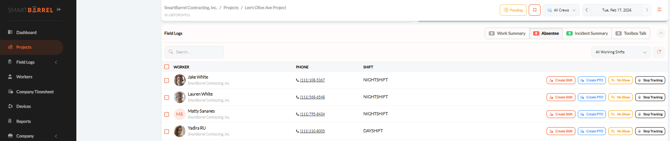
The Project Absentee module helps you quickly identify workers who were expected on site but have not checked in for the day.
From the absentee list, you can take immediate action by:
- Creating a shift for someone who forgot to punch in
- Assign PTO
- Mark a worker as a No Show
- Selecting Stop Tracking for workers who are no longer expected on the project
What’s New
The Project Absentee module is now automatically powered by Project Workers - it is no longer tied to Working Shifts.
However, a worker must have punched into the project at least once before they will appear on the Absentee list.
This means:
- You no longer need to create or assign Working Shifts for workers to appear as absent.
- Workers are automatically added to Project Workers the first time they punch into the project.
- Only workers who have previously punched into the project will be eligible to appear on the Absentee list.
- There is no need to pre-assign Project Workers ahead of time unless desired for administrative visibility.
💡In short: The system learns who belongs on the project based on real punch activity.
How the Absentee List Works
A worker will appear on the Absentee list when all of the following conditions are met:
- They have punched into the project at least once in the past
- They are on the Project Workers list (automatically added after first punch)
- They have not punched into any project in SmartBarrel for the selected day
- They are not marked as Stop Tracking
- Workers assigned to a working shift has the current weekday toggled ON.
If a worker has never punched into the project before, they will not appear on the Absentee list.
Automatic Removal Logic from Absentee List
- Once a worker punches into any project, they are automatically removed from absentee lists across all projects.
- If Stop Tracking is applied and approved, the worker is removed from the absentee count until they clock back into the project again.
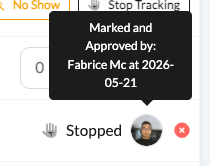
- When a worker is approved for Stop Tracking, the stop tracking request will be removed from the absentee lists starting the day following the approval. This workflow provides confirmation to the user that the stop tracking has been received.
- In the example below, the stop tracking will disappear from absentee list starting 2026-05-22.
- Cancel a stop tracking from project workers or worker profile.
Absentee Counter Status
The Absentee tab displays a status counter to help you quickly understand whether any action is still required:
-
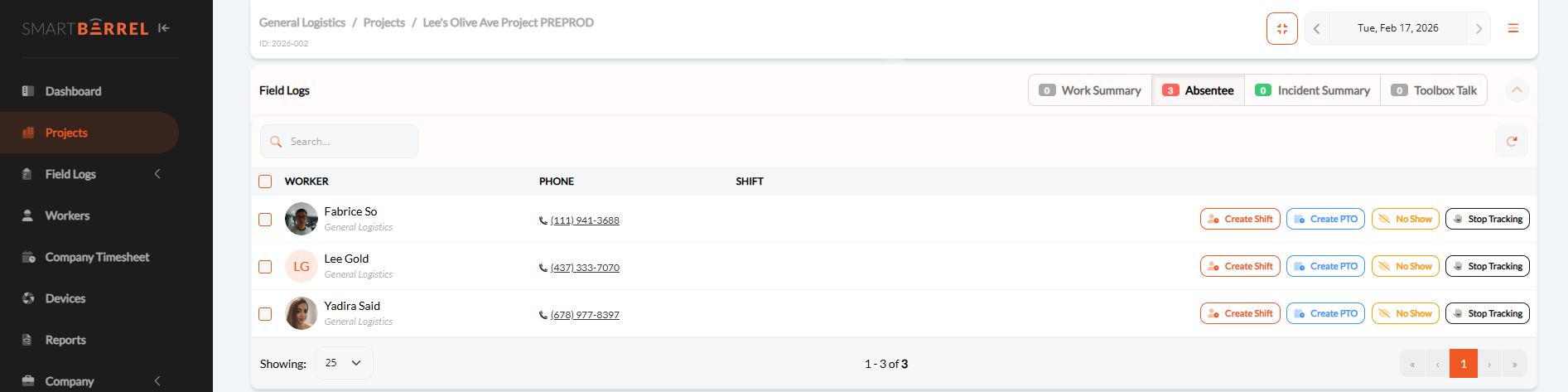
Red number -> There are workers on the absentee list that still require action.
-
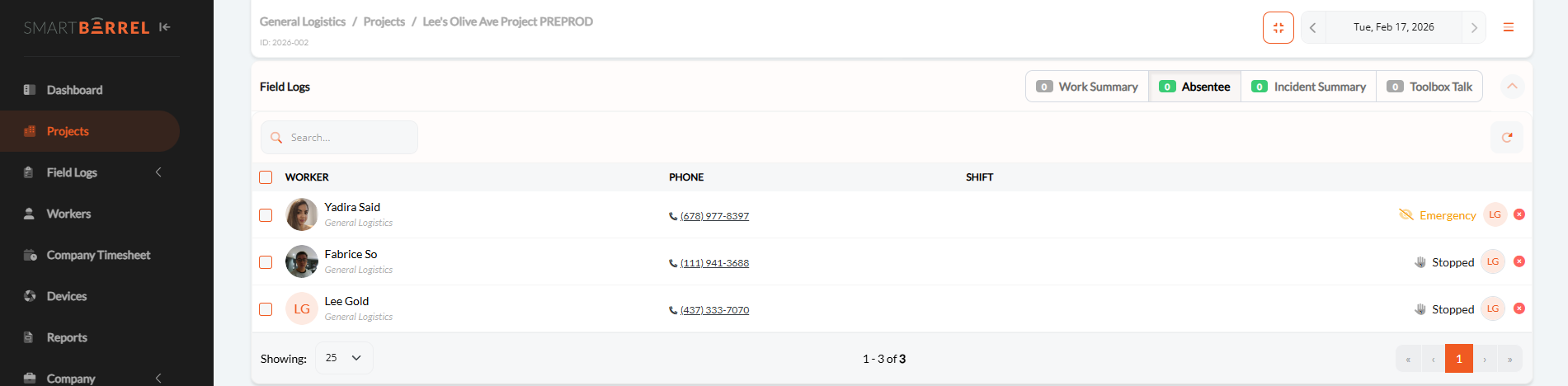
Green number -> All absentee items have been addressed and there are no remaining actions to take.
This gives users a quick visual indicator of whether follow-up is needed without opening the list.
Actions Available from the Absentee List
From the Absentee screen, you can take action for each worker:
-
Create Shift - Use when a worker is on-site but forgot to punch in.
-
Create PTO - Creates a PTO shift for the day.
-
No Show - Marks the worker as absent for the day.
-
Stop Tracking - Removes the worker from the absentee list if they are no longer expected to work on that project.
Note: Once Stop Tracking is approved, the worker no longer counts in the absentee tab count. They will reappear automatically if they punch into the project again in the future.
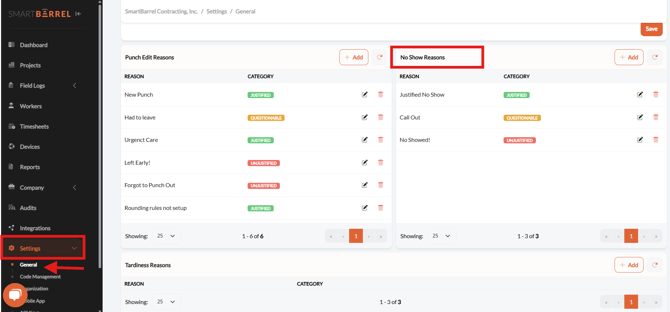
Note: No Show reasons are configured in the company Settings > General > No Show Reasons.
There are three options under this category:
- Justified: This category includes instances where a worker provides a valid reason for missing their shift (e.g., medical emergency, approved time off).
- Questionable: The reason provided is unclear and may require a follow-up to determine whether it can be justified.
- Unjustified: This applies when the absence lacks a valid reason or no explanation is provided.
Stop Tracking Workflow (New)
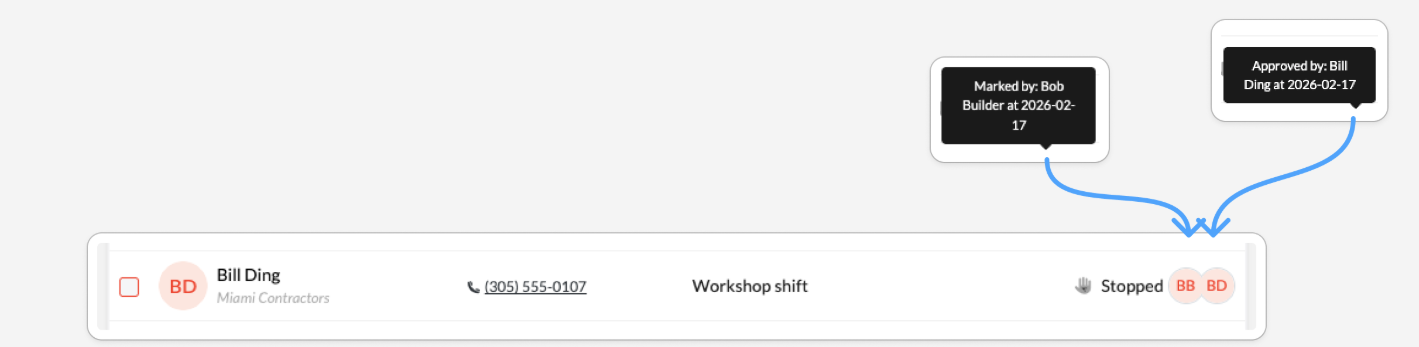
Stop Tracking now supports a suggestions and approval workflow:
- A user with the Stop Tracking permission can suggest stopping tracking for a worker.
- A user with Approve Daily Project permission must approve the change when locking the day.
- Once stop tracking is approved, the worker is removed from the absentee count.
- The stop tracking request will continue to show on the absentee list until the day after it was approved to confirm it was received.
This ensures attendance changes are reviewed before becoming final.
Stop Tracking Status
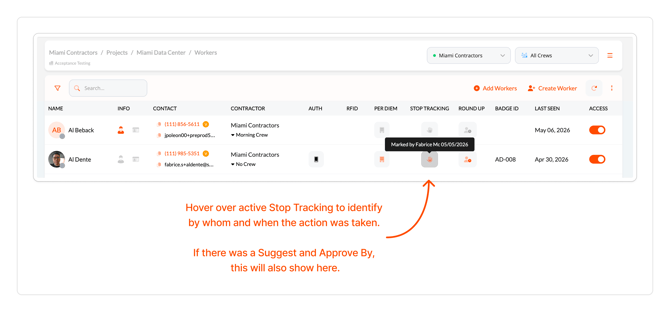
Stop Tracking status for all workers can be seen in Project Worker page under the Stop Tracking column.
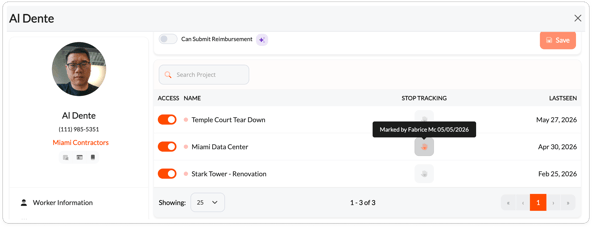
Alternatively, if the user has permission to see worker profile, the Stop Tracking status is also available in the project access section.
Permissions Required
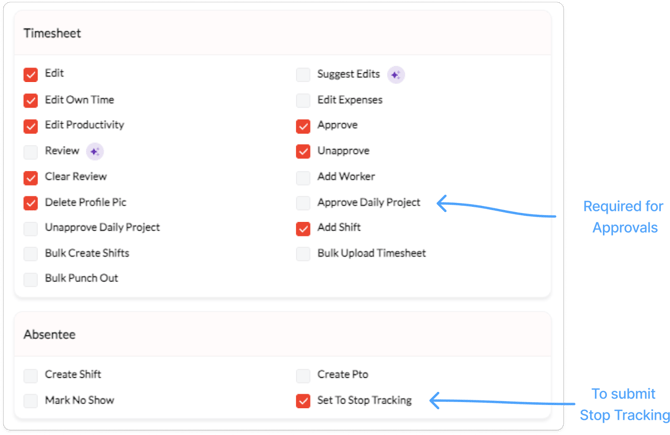
Suggest Stop Tracking
- Requires: Stop Tracking permission under Absentee settings.
Approve Stop Tracking
- Requires: Approve Daily Project permission.
- If project/shift approval settings are set to resolve all absentee records before you can lock the day, you will be required to action all outstanding absentee actions.
Best Practices
- Review the Absentee list mid-day to catch missed punches early.
- Use Stop Tracking for workers who have permanently rotated off the project to keep your list clean.
Why This Matters
The Project Absentee module provides:
- Real-time visibility into expected vs. actual attendance
- A quick mid-day check for missing workers
- Faster follow-up on attendance issues
- Cleaner workflows without needing Working Shift setup
Error Messages
"Employee already has an approved request to stop being tracked."

- If you get this error message when applying a "Stop Tracking" for a worker, it means the worker already has a stop tracking in effort. This typically happens if you are looking at a worker on a date in the past and a Stop Tracking was applied after the date you are looking at.
- To find when the Stop Tracking was put in effect for the worker, look at Project Worker page and hover over the orange icon in the Stop Tracking column.